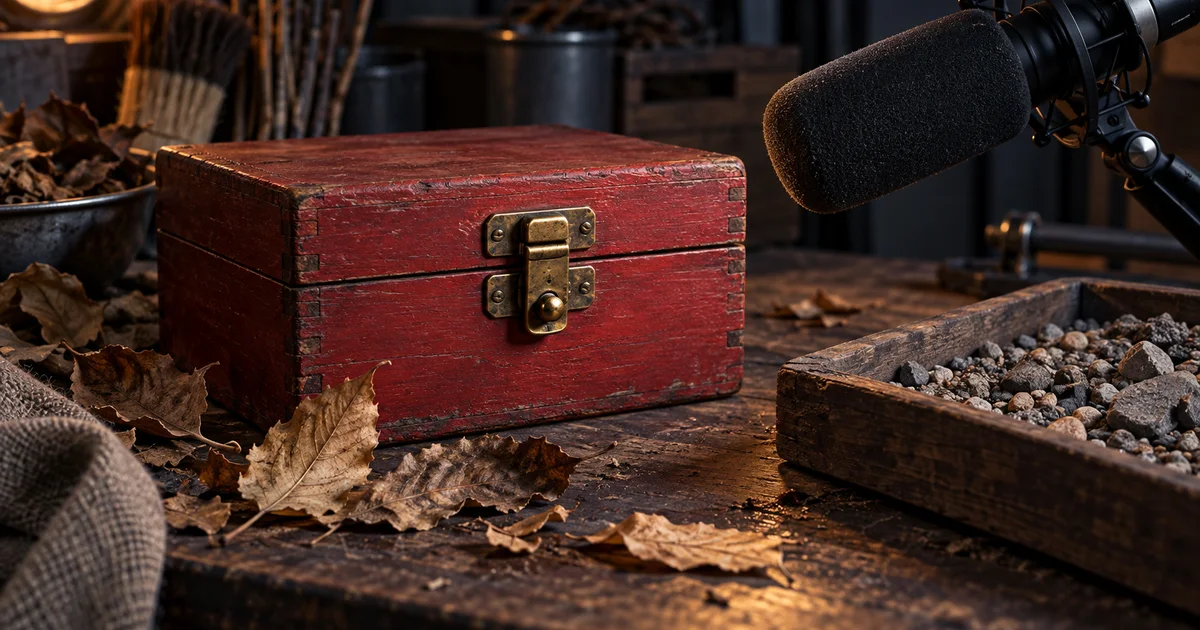

A giant cinematic impact can sound impressive in isolation and ridiculous on a small box latch. Good Foley follows the scale, surface, and timing of the image. This guide uses ElevenLabs for text-led sound design and a simple cue sheet to keep the finished scene coherent.
Download the Foley cue sheet · Add sound to a silent clip
Editorial guide checked September 13, 2026. Examples and worksheets are original planning material; the hero is an AI-generated illustration, not a model benchmark.
Choose whether the text or the picture leads
There are two different starting points for sound design. With text-to-sound, you describe a source and choose a useful recording-like result. With video-conditioned sound, a model uses the uploaded picture to guide a sound pass. Neither choice eliminates editorial review. The first gives you a way to build individual layers; the second can help establish sound for an existing silent clip.
ElevenLabs Sound Effects belongs to the first workflow. Its playground guide describes a text prompt, duration controls, a looping option, and multiple returned candidates. It is separate from the company's speech tools. Typing an entire spoken sentence into an effects description is not the right way to obtain dependable narration.
Our assignment is an eight-second scene: a person closes a small wooden box, fastens its brass latch, and takes two steps on gravel. A quiet outdoor background continues underneath. The example is a cue-planning exercise, not a claim that a generated take has already achieved frame-accurate synchronization.
Build the cue sheet from visible events
Watch the silent scene first. Mark when the lid contacts the box, when the latch engages, and when each shoe loads the gravel. Use the actual clip's times. The illustrative times below show how to record the events; they are not a specification that a text prompt will automatically obey.
| Illustrative time | Visible event | Sound needed | Editorial concern |
|---|---|---|---|
| 0–8 seconds | Quiet courtyard | Low, continuous outdoor air | No conspicuous repeating bird call |
| 2.0 seconds | Lid meets the box | Small hollow wooden contact | Avoid a door-sized slam |
| 2.7 seconds | Brass latch catches | Short metallic click | One click, followed by a short decay |
| 4.8 and 5.6 seconds | Two footsteps | Gravel compression and release | Match each step's weight and interval |
This separates four jobs that compete in a single broad request. If the latch is too loud, you can lower it without burying the footsteps. If a footstep arrives late, you can move it without moving the courtyard. That independence is often more valuable than an impressive all-in-one result.
Leave a little sound before and after isolated actions when possible. Those handles make placement and fades easier. An effect cut exactly at its largest peak may have lost the beginning of the contact. An effect ending abruptly may sound clipped even when its main event is convincing.
Describe the object, action, and listening position
A useful sound prompt answers five questions: what makes the sound, what it is made of, what happens, where the listener is, and what kind of surrounding space is present. Add exclusions only when they address a real ambiguity. “Epic, cinematic, high quality” contributes little to the physical identity of a tiny latch.
For the gravel layer, use a separate description rather than appending it to the latch request. Specify shoes and perspective if those are apparent in the image. A heavy boot dragging across stones will not naturally suit a light step in soft footwear.
ElevenLabs' own effects prompting advice recommends generating individual effects and combining them in an editor when that gives better control. Even the two-footstep example may be easier to build from separately selected steps if the generated interval does not fit the picture.
Use settings to solve an audible problem
The current capability reference supports clips up to 30 seconds. Choose a duration that gives the requested action room to begin and decay. A longer setting does not make a small effect more realistic, and it may leave more unwanted material to remove.
If your interface offers prompt influence, change it in response to a specific failure. An effect that ignores “one click” calls for a different experiment from an effect that follows the event but sounds unnaturally constrained. Save the setting with the candidate; do not simultaneously change duration, prompt, and influence and then attribute the improvement to one control.
Looping is useful for a continuous background, not a reason to make every isolated impact repeat. After generating an ambience, listen through several joins. Check for a rhythmic pulse, a sudden change in air noise, or an identifiable event that becomes annoying each time it returns.
Audition at the scale of the scene
Listen to the candidates at a comfortable level before judging them against one another. A louder effect can appear more detailed simply because it is louder. Match their approximate listening level, then choose based on the object, event count, texture, and usable beginning and ending.
Next play each promising candidate with the picture. A short, dry click that felt plain in isolation may be exactly right for the box. A spectacular resonance may imply a much larger object or an indoor hall. The scene, not the effects browser, is where the final choice belongs.
Review three passes: picture and effect, effect alone, and the whole mix. The isolated pass exposes extra clicks or voices. The combined pass reveals timing and scale. The full mix shows whether the latch masks a spoken word or disappears beneath music. Do not keep adding bass to make a tiny event survive an unnecessarily loud background.
Place the onset, then preserve the tail
In a video or audio editor, line up the perceived start of the contact with the visible event. The waveform's highest peak is not always the beginning of the sound. Listen at normal speed after making the placement, because a visually neat waveform can still feel late or early.
If the sound starts correctly but ends too suddenly, restore a suitable tail or fade rather than shifting the entire clip. If two steps do not fit, separate them and place them individually, preserving enough surrounding sound for each to feel natural. Avoid stretching a transient heavily just to fill a gap; audition another take when the texture becomes implausible.
For the courtyard, keep a stable quiet bed under the edits. Abruptly replacing the background with every effect makes the scene sound assembled from different places. When exporting, listen once more to the delivered file, since a mix that worked in the editor can still contain an accidental mute or a cut-off ending.
Use QuestStudio when you already have the silent clip
QuestStudio does not currently expose ElevenLabs Sound Effects. Its Music Lab Video → Audio mode offers a different route: upload a supported short clip and use an available video-conditioned model to create sound. Check the selected model's duration and upload requirements in the interface.
Use the same cue sheet to review that result. If it adds three steps to a two-step action, reject or repair the pass instead of treating synchronization as automatic. Assemble precise independent layers in a suitable external editor when needed. The practical goal is one finished scene whose sound belongs to the visible materials and actions.
Frequently asked questions
Is ElevenLabs Sound Effects a text-to-speech tool?
No. It generates effects and ambience from descriptions. Use a speech tool for reliable spoken narration.
Should I generate an entire scene in one prompt?
That can suit a rough ambience pass. Generate separate layers when exact event timing or independent levels matter.
Does a looping option remove the need to check the seam?
No. Listen to several repeats and inspect changes in texture, perspective, and background level.
Is ElevenLabs Sound Effects available in QuestStudio?
It is not currently exposed. Music Lab has a separate Video → Audio mode with video-conditioned sound models.
For a focused next step, read Firefly Voice to Sound Effects: Perform the Timing Your Scene Needs.