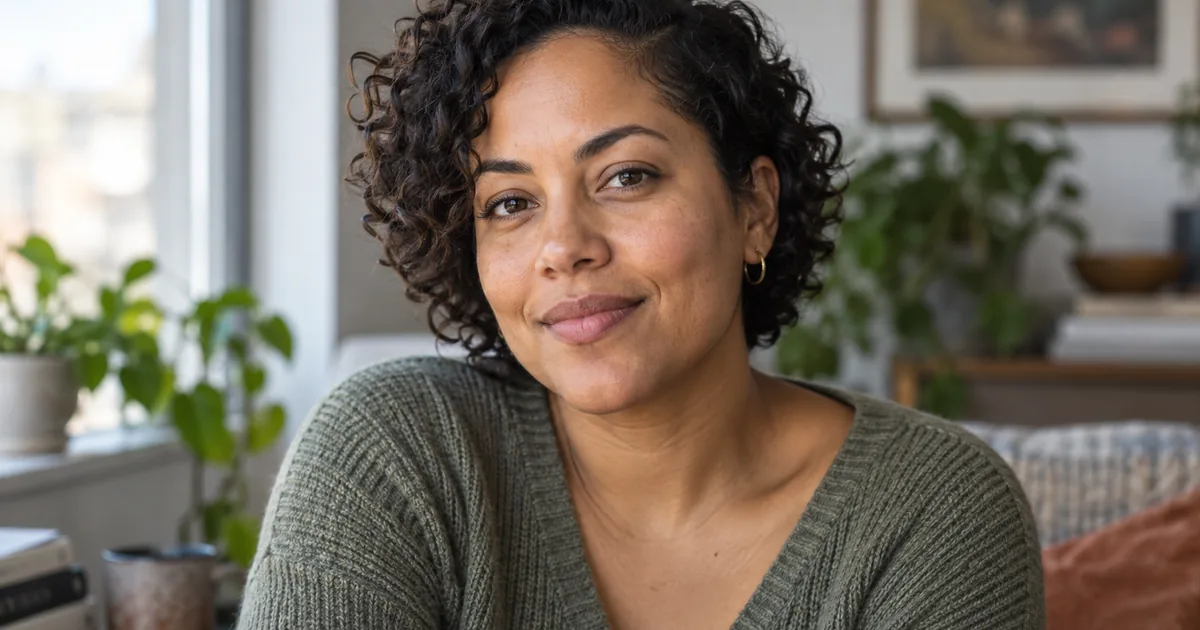

The face is sharp, but the skin looks like molded plastic. Adding “more pores” can turn that smooth face into a rough, older-looking version of the person. Start by deciding whether the problem is missing texture, flattened tone, or a glossy lighting pattern.
Download the review worksheet · Repair one portrait carefully
Diagnose the plastic look
| Symptom | First thing to check | Avoid |
|---|---|---|
| Uniformly smooth cheeks | Smoothing or denoising removed local variation | Global sharpening of eyes and hair |
| Broad glossy forehead | Lighting and highlight shape | Adding grit to compensate for glare |
| Repeated dots everywhere | Invented or overlaid texture | A second texture pass |
| Face no longer matches | Geometry or identity drift | Trying to hide the change with grain |
Zoom out before editing. Texture that looks dramatic at 200% may be invisible in the final crop, while a changed jawline remains obvious. If the source is already small or heavily compressed, there may be little genuine detail available to preserve.
Keep an untouched reference
Save the original and work on a copy. Compare eye spacing, nose shape, mouth corners, hairline, and any distinguishing features. A beauty-style regeneration can change these while appearing more polished. Decide which edits are acceptable for the purpose of the portrait before generating.
Adobe describes Camera Raw adjustments as nondestructive. Whatever editor you use, keep a reversible path. Do not overwrite the source after one promising preview.
Use one local, restrained edit
If your chosen editor supports a mask, limit the edit to the affected skin area and protect the eyes, lips, hair, and face outline. If only whole-image editing is available, use a conservative instruction and compare the full face afterward. A preservation request is not a guarantee.
The hero on this page is an original generated illustration of natural-looking portrait lighting. It is not a before-and-after repair test. For your own image, judge the edit against the actual source rather than an idealized reference face.
Change the light when the light is the problem
A broad bright highlight can make skin look glossy even when some texture is present. If the underlying issue is illumination, reduce the harsh highlight or use a softer lighting brief. Do not ask simultaneously for a new face, dramatic lighting, and more texture.
Use the bounded lighting repair workflow for that case. Keep skin color believable under the chosen light. A warm highlight and a cool shadow can be natural; a sudden patch of unrelated color on one cheek deserves another look.
Accept or reject the result
- Identity and expression still match the source.
- Skin has varied tone rather than a uniform speckled layer.
- Pores are not equally strong on every surface.
- Hair, eyelashes, and clothing have no sharpening halos.
- The final crop looks natural at its real viewing size.
If the correction changes the person, return to the original and reduce the intervention. If texture remains weak but identity is sound, a modest result may be the right result. Do not keep stacking edits until the image loses its connection to the reference.
How QuestStudio helps
Use Image Lab with the original portrait and a single correction goal. Where the selected mode supports reference editing, compare the result with the untouched source. The photorealistic image prompt guide helps prevent some issues at the initial generation stage.
Save the accepted version and its brief. The next useful step is one careful comparison, not ten stronger texture prompts.
Frequently asked questions
Why does AI skin look plastic?
Overly uniform tone, aggressive smoothing, glossy highlights, or weak fine detail can each contribute. Identify the visible cause before choosing a repair.
Will adding film grain fix it?
Grain may add surface variation, but it does not correct facial geometry or unrealistic lighting. Too much can make the image noisy without making it believable.
Can AI recover someone’s actual pores?
Generated texture cannot establish the original detail that was missing from the source. Treat it as an interpretation.
Should I sharpen the whole portrait?
Not as a first response. Global sharpening can add halos to eyes and hair while leaving the underlying skin problem unresolved.
Start with one version you can inspect. Repair one portrait carefully, then use the worksheet to decide what needs another pass.
Continue with a useful next step
 Image
ImageNegative Prompts for AI Images: Portraits, Hands & More
Copy negative prompts for realistic portraits, hands, and products. Troubleshoot face distortion, check model support, and compare one change at a time.
 Image
ImageAI Full-Body Photos: Stop Cropping Heads and Feet
Stop AI portraits from cutting off heads and feet. Separate source framing from display crops, plan the full pose, and check margins before generating again.
 Image
ImageFix AI Hands: Repair Fingers Without Losing the Pose
Repair extra fingers, fused hands, and broken grips in AI photos. Check the pose, wrist, and object contact before masking and approving your next local edit.