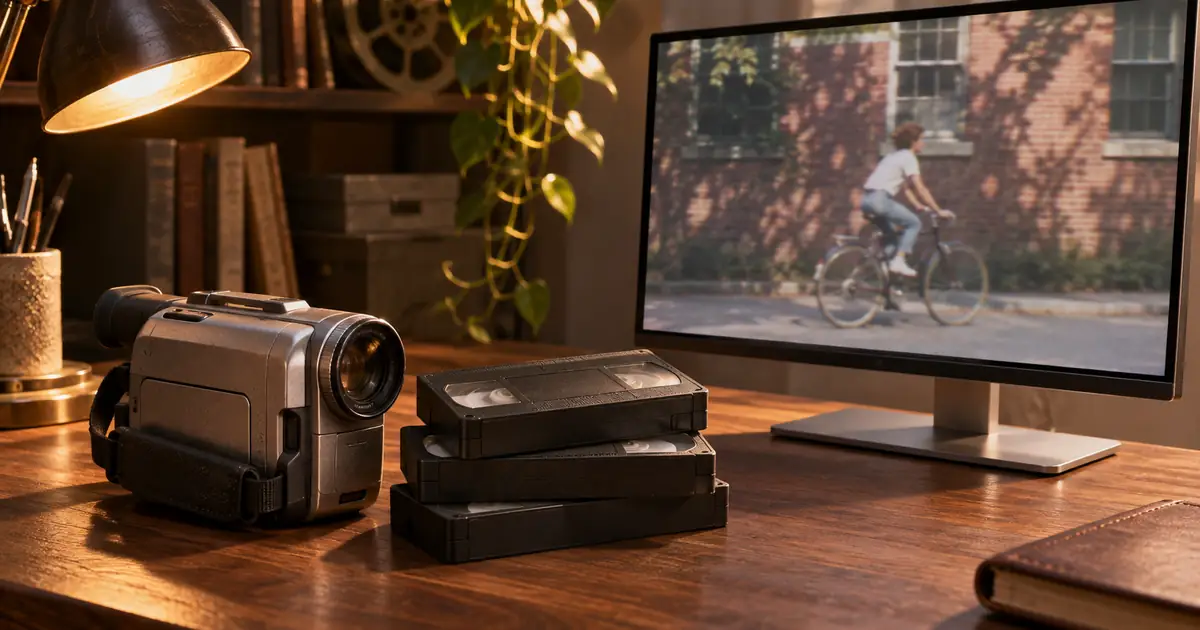

An archive clip looks reasonable while paused on the room, then grows thin horizontal teeth around a moving hand. Sharpening makes those edges worse. Before denoising or upscaling, check whether interlaced fields are being displayed together as a progressive picture.
I would keep the untouched capture and test a short moving section first. Deinterlacing can change both spatial detail and motion. A clean-looking still frame is only part of the approval.
Frames and fields describe different pictures
Progressive video stores complete frames. Interlaced video organizes alternating image lines into fields. In genuinely interlaced motion footage, successive fields represent different moments. When those moments are woven together without the appropriate display or conversion, moving boundaries can show comb-like edges.
Not every file labeled interlaced contains different-time motion in every field. Film transfers and progressive material carried in an interlaced structure need careful interpretation. Metadata is a useful starting clue, not a substitute for examining the actual movement.
Adobe's field-options documentation distinguishes deinterlacing from flicker reduction. A filter that softens thin lines does not necessarily perform the conversion your source requires.
Look at a constructed moving-edge example
The original diagram uses a plain rectangle at two positions. One group of alternating rows comes from the earlier position and the other from the later position. Weaving the rows together creates a serrated boundary. The exaggerated row spacing makes the mechanism readable on a phone.
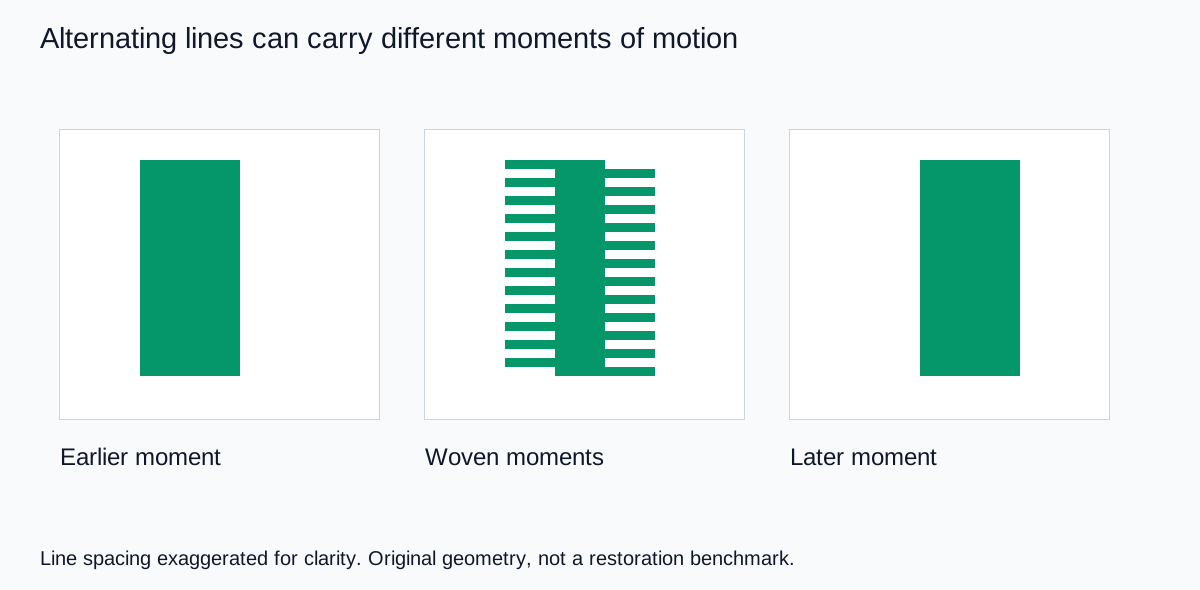
Notice that the stationary background can remain clean. That is why judging a quiet frame or a still title card can miss the problem. Pick a hand, a passing bicycle, or a vertical edge moving sideways when you inspect a real clip.
Also distinguish these regular alternating lines from compression blocks, motion blur, or optical-flow warping. The frame-interpolation guide addresses invented intermediate frames, which is a different operation from interpreting existing fields.
Inspect the source before choosing a conversion
Record the file's dimensions, declared frame rate, scan type, and field order using your editor or a media-information tool. Preserve the exact source filename. If it came from a capture service, ask what processing was already applied rather than assuming the delivered file is untouched.
Find a few seconds with continuous motion and step through it. Look for regular combing, repeated pictures, and uneven forward movement. Inspect at an appropriate pixel scale because a small preview can hide alternating lines. Then play the same interval at normal speed.
A field-order error can make reconstructed motion seem to step backward and forward. Test the interpretation on a copy and compare the same passage. Do not invert field order across an entire mixed folder because one clip improved. Different sources may have different histories.
If the content appears to be a film transfer or progressive material inside an interlaced carrier, investigate field matching or the appropriate transfer reversal. Automatically throwing away one field can remove useful detail from material that should have been reconstructed differently.
Choose the output motion deliberately
A source with 50 distinct fields per second contains 50 temporal samples of movement, even though it may be described as 25 interlaced frames per second. A suitable field-rate progressive conversion can preserve more of that motion sampling than a 25-frame progressive output.
That does not mean every project should become 50 fps. Delivery requirements and the rest of the edit still matter. It means you should know whether the conversion retains or reduces the source's motion cadence, then judge that tradeoff rather than treating the output frame rate as a cosmetic label.
For a family archive insert in a modern web video, I would create a short progressive working copy with an appropriate deinterlacer, inspect edges and cadence, and only then decide how it belongs in the final timeline. Keep the archive master so a future conversion is possible.
| Result | Possible issue | Next check |
|---|---|---|
| Combing remains | Wrong interpretation or incomplete conversion | Inspect the exported file, not only the preview |
| Movement jitters backward | Field order may be wrong | Compare a short alternate-order test |
| Motion becomes less fluid | Temporal samples were reduced | Compare field-rate and frame-rate output |
| Fine detail becomes soft | Interpolation or discarded field detail | Compare another documented method |
Convert before destructive resizing
Scaling woven fields as though they were one progressive picture can mix information from different moments into neighboring rows. Establish the correct source interpretation and conversion before a large resize. Keep that stage separate from creative sharpening, grain, and color treatment.
Check geometry too. Older formats may use non-square pixels, so the correct display shape is not always the ratio of stored width to height. A circle or known object can reveal a stretched interpretation. Do not correct a shape error by arbitrarily cropping the sides.
After conversion, render a short file and reopen it. Check the first moving edge, a fast passage, and a quiet detailed area. An editor's preview may apply processing that is different from the export. Write down the method, order, output rate, and any remaining defect with the exact filename.
The export review workflow can help organize the final delivery check. The key evidence is the saved result in motion, not whether a checkbox was selected.
How QuestStudio fits a mixed-source edit
Use Video Lab to create a complementary illustrative shot when the story needs material beyond the archive. Finish the archive interpretation in a suitable editor before comparing the two sources. Do not send a combed clip through generation simply because its edges look unusual.
Match composition, color, and the purpose of the cut after each source is technically usable. The video color-matching guide covers that later step. New illustrative footage should not be presented as recovered historical footage.
My recommendation is to preserve the original, solve the field structure on a small moving sample, and approve the progressive working copy before further finishing. That keeps a format problem from becoming a chain of unnecessary visual repairs.
Frequently asked questions
Does 1080i mean lower stored dimensions than 1080p?
Not necessarily. The letter describes scan structure. Check the actual dimensions, field timing, and display interpretation instead of inferring everything from the label.
Should every interlaced-labeled file be deinterlaced?
No. Some material contains progressive or film-origin pictures in an interlaced structure. Inspect motion and source history before choosing a conversion.
Is flicker reduction the same as deinterlacing?
No. A filter that softens thin horizontal details can address flicker without reconstructing progressive pictures from fields.
Why does the converted motion seem to jump backward?
Incorrect field order is one possible cause. Compare a short moving section with the appropriate alternate interpretation before applying a global change.
Can I delete the original after making a progressive copy?
Keep the original when it is your archive master. The converted copy contains processing decisions that may be worth revisiting later.
Technical references
Continue with a useful next step
 Creator Workflows
Optical Flow: When Smoother Video Needs an Edge Check
Compare an original frame-interpolation experiment, learn where optical flow can struggle, and choose a retiming method that preserves your product video.
 Video
Anamorphic De-Squeeze: Restore the Shape Before You Edit
Restore anamorphic video proportions with a simple geometry check. Separate squeeze factor, pixel aspect ratio, and delivery crop before exporting a clip.
 Video
Color Match AI Video Clips Without Flattening the Scene
Color match AI video clips with a reference shot and a three-frame review. Check source interpretation, exposure, skin and export before applying a final look.
Hero: AI-generated editorial illustration. Supporting diagrams and exercises: QuestStudio.