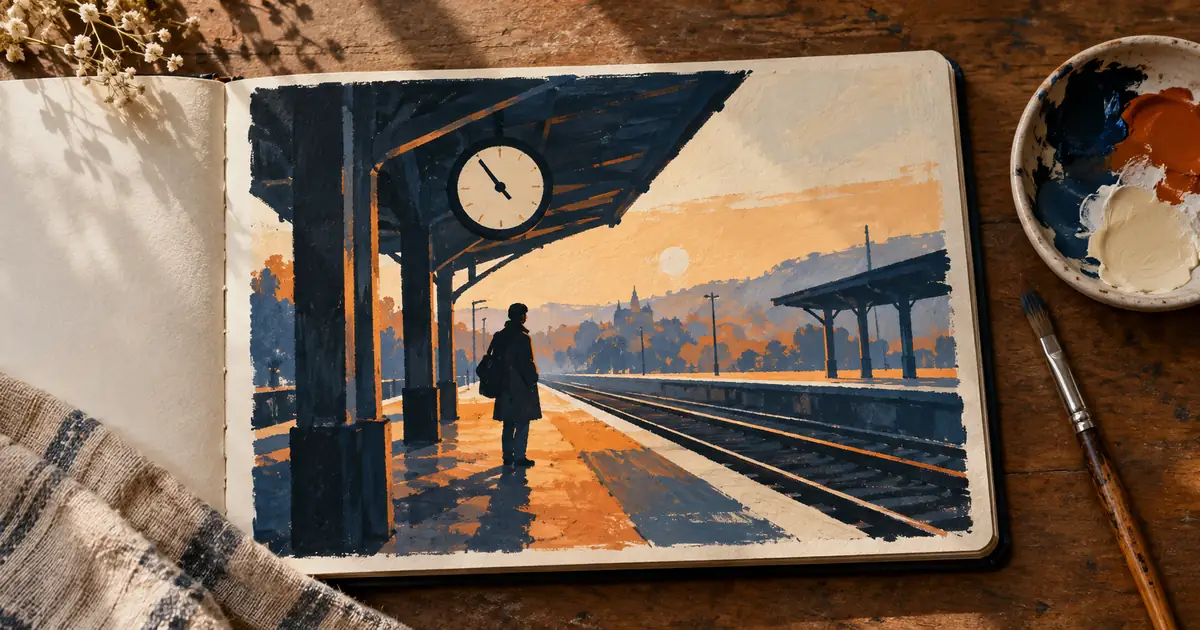

A rough drawing can communicate placement faster than a paragraph. Krea Realtime is useful when you know that the figure should move left or the foreground should become larger, but you have not yet settled the finished image.
Download the composition experiment sheet · Develop your chosen composition
Documentation checked September 14, 2026. The railway-platform sketch is an original art-direction exercise, not a measured Krea speed or fidelity test. The hero is an AI-generated illustration.
Use realtime drawing for the decision it makes visible
Krea describes Realtime Edit as a canvas that responds to brushstrokes, with text guiding how rough shapes become a scene. It also documents webcam and screen inputs. This guide focuses on drawing because it offers a simple way to test composition without introducing a second moving input.
Realtime feedback is useful when placement is still undecided. It helps you see whether a large foreground shape creates depth or simply blocks the subject. It does not eliminate the need to choose an image, inspect it, and finish it for a particular destination.
Our exercise is an illustrated railway-platform scene for a fictional travel essay. It contains a platform, a round station-clock shape, and one traveler. The goal is a clear reading order: notice the traveler, understand the platform, then discover the clock. No detailed train or readable clock numerals are needed.
Reduce the scene to three major shapes
Start with a broad horizontal platform shape, a smaller upright traveler silhouette, and a circle for the clock. Use clearly separated values or colors so you can see their relationships. At this stage, a rectangle that communicates depth is more useful than a beautifully drawn suitcase.
Keep the traveler large enough to be a focal point but small enough to suggest the scale of the station. Put the clock where it supports the scene rather than sitting directly behind the head. Leave a patch of open space around the silhouette so the subject does not merge with the background.
If the drawing feels unclear before generation, inspect the shape arrangement first. An elaborate prompt can produce attractive details while retaining a weak composition. The model cannot decide which parts of your brief matter unless your inputs make those relationships reasonably clear.
Let text identify the shapes
Use a restrained description such as: “A quiet railway platform with one traveler, a round station clock, broad geometric painted shapes, indigo and warm rust colors, soft morning light.” This is an original example to adapt, not a guaranteed preset.
The drawing communicates where things go. The text communicates what they are and the visual treatment you want. If you write a crowded station scene while drawing one isolated traveler, the two instructions compete. Resolve that conflict before judging the tool’s ability to follow either one.
Do not add new objects every time the image feels uninteresting. Try moving the traveler, changing the foreground depth, or altering the amount of open space. Those edits change the composition while keeping the subject matter stable enough to compare.
Run three spatial experiments
| Experiment | Drawing change | Keep fixed | Judge |
|---|---|---|---|
| Focal placement | Move the traveler left of center | Platform depth, clock, palette | Does the eye find the traveler first? |
| Depth | Increase the foreground platform shape | Traveler position and height | Does the scene feel spacious or blocked? |
| Separation | Move the clock away from the silhouette | The other major shapes | Do the objects read independently? |
Save a candidate after each meaningful change. You do not need to preserve every brushstroke, but you do need a way to compare the decision before and after. Realtime exploration can feel productive while quietly replacing an earlier composition that was stronger.
View the candidates at the same size. If one fills the screen and another is a tiny thumbnail, you may be comparing presentation rather than composition. Use the same crop and a neutral background for a fair visual choice.
Diagnose a shape that becomes the wrong object
A dark vertical mark might become a post instead of a traveler. First inspect its proportions and context. Does it have enough separation from the platform edge? Does the text clearly name one person? Add the minimum visual cue needed to clarify the intended object.
A clock circle might become a sun if it floats in open sky. Give it a plausible attachment or move it into the station structure. This is a compositional correction, not merely a demand for better prompt obedience.
If an object grows or spreads beyond the intended area, simplify the drawing around it. Busy overlapping strokes can make boundaries ambiguous. Work from large shapes toward small features so each new detail has a stable place to belong.
Separate discovery from precision
Realtime exploration may reinterpret details as you draw. That is useful for discovering a visual direction, but it is less suitable as the final authority for exact product geometry, a specific person’s identity, or typography that must remain unchanged.
For the travel essay, the station is fictional and the shapes are expressive. That gives the exercise room to explore. For a real architectural proposal, the same freedom could invent openings, dimensions, or structural relationships. Decide which kind of image you are making before accepting the output.
If your next task is a precise local correction, choose the appropriate editing workflow rather than expecting every tool named Realtime or Edit to behave identically. Krea’s separate Edit guidance describes regional tools; the live composition exercise here has a different purpose.
Approve the layout before adding detail
Make one final comparison with detail deliberately ignored. Squint at the images or view them as small thumbnails. Which candidate has the clearest silhouette, strongest depth, and least accidental overlap? Choose that composition before evaluating decorative texture.
Then allow a limited detail pass. Add a suggestion of luggage, a few platform markings, or atmospheric light only if they reinforce the hierarchy. If the clock suddenly becomes the dominant object, bring it back into balance rather than adding more detail to everything else.
Keep text out of the generated scene when it needs to be exact. Add the essay title and any labels later as editable type. A clean area planned for typography is more useful than a beautiful image that leaves nowhere readable to place it.
Make the handoff explicit
Save the selected image, the rough drawing, and a short note explaining why the composition works. For example: “Traveler left of center; deep foreground creates distance; clock stays separate from the head; title space remains open on the right.” This note helps the next editing step preserve the important decisions.
You can develop a finished image in Image Lab using the approved direction and supported inputs. Krea’s live canvas remains an external workflow. Any new generation may reinterpret the layout, so compare it against the chosen composition rather than assuming the transfer is exact.
Review the final crop in its actual page or card. The open title space may disappear in a square thumbnail, or the traveler may become too small on a phone. Prepare a second composition when the destination genuinely needs one instead of forcing every format through the same crop.
Frequently asked questions
Do I need to draw accurately to use Krea Realtime?
The workflow can begin with rough shapes. Clear placement, separation, and a matching text description matter more than detailed drawing in the first pass.
Why does my circle become the wrong object?
Its position and surrounding shapes may suggest something else. Clarify its context and name the intended object in the text before adding complexity.
Is the live result automatically a finished image?
No. Select a composition, inspect details, and review the final export at its intended size and crop.
Can I use Krea’s realtime canvas inside QuestStudio?
This guide uses Krea externally. QuestStudio Image Lab can help develop the selected visual direction in a separate creation step.