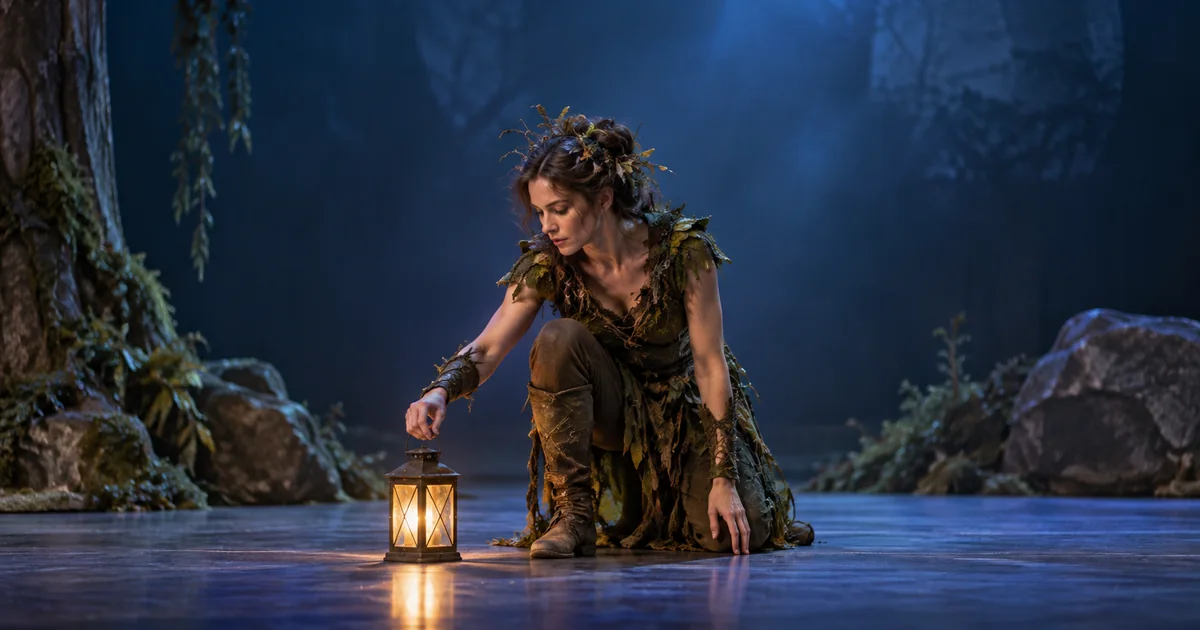

The creature looks convincing until its foot slides across the floor. A successful character transformation preserves more than a pose: it preserves the actor’s weight, intention, and relationship with the set. This Ray3 Modify workflow starts with those physical facts.
Download the performance review sheet · Prepare a character reference
Editorial guide checked September 13, 2026. Examples and worksheets are original planning material; the hero is an AI-generated illustration, not a model benchmark.
Choose a performance that is worth preserving
Ray3 Modify is useful when the action already exists and its timing matters. A performer pauses before picking something up, shifts weight onto a foot, or turns toward a sound. Those choices are difficult to describe completely in text. The recording gives the transformation a physical starting point.
Our worked assignment is an eight-second lantern lift. A performer kneels, closes one hand around the handle, raises the lantern, looks into it, and holds. The proposed transformation is a woodland character with bark-like clothing. We want a different appearance while keeping the hesitation, grip, and lift. This is an original planning example, not a claim that we ran a model benchmark.
Write the protected performance in ordinary words before choosing a style. “The right foot stays planted until the lantern clears the floor” is more useful than “perfect realism.” It identifies an observable event. If the output violates it, you know what failed even when the texture looks impressive.
Separate the character reference from the recorded action
A reference tells the system what the transformed character looks like. The recording tells it what the performer does. Give each input one clear job. Avoid a reference with crossed arms if the performance depends on a visible hand, or a huge trailing cape if the actor’s silhouette is compact. Those conflicts invite invention where the shot needs continuity.
For the lantern scene, use a character with approximately human shoulders, elbows, knees, and hands. Keep the costume away from the gripping fingers. Start with a straightforward transformation before attempting a creature with six limbs or a body that cannot make the recorded contact. A non-human design can be artistically valid; it simply changes what preservation can mean.
Inspect the reference at the size it will appear in the shot. Tiny costume details may not survive a wide view. Keep two or three identity anchors that do: the shape of the collar, a distinctive sleeve, and a coherent face. A crowded reference sheet with several competing designs is a poor substitute for one approved character.
Record the contact clearly
Use a source in which you can see the hand approach, make contact, and carry the prop. Leave a small pause before the lift and a readable hold afterward. If the handle is hidden behind the wrist for the entire action, the original already leaves an important question unanswered.
Keep the first test’s camera movement modest. A locked frame makes a sliding foot easy to recognize because the floor remains stationary. Later, a slow camera move can serve the story. Starting with a handheld pan, a body turn, and a prop transfer combines several failure sources before you have established whether the basic transformation works.
Watch the unmodified recording once without sound. Check whether the action still reads. If the original foot slips or the lantern passes through a sleeve, that is a performance or staging problem to fix before generation. AI transformation should not become an expensive way to discover that the source action was unclear.
Use the controls for the Ray3 mode you selected
The Ray3 Modify user guide describes combining an input video with a character reference, optionally modifying keyframes, and adjusting strength between closer adherence and freer reimagining. It also contains a consequential detail: the end keyframe is taken at five seconds, even when the upload is longer. For our eight-second example, do not assume that card represents the final hold.
The separate Ray3 Modify FAQ documents a ten-second maximum upload for that mode. These are Ray3-specific instructions, not a promise about every newer Luma model or third-party interface. Confirm the model and controls in your workspace before preparing a longer sequence.
Start with a modest transformation strength, review it, and increase only if the new appearance is too weak. Stronger reimagining may help a substantially different creature emerge, but Luma warns it can reinterpret camera movement. More strength is therefore a tradeoff, not a general quality upgrade.
This is a planning brief for the external transformation workflow. Apply it through the instructions and reference controls that your selected mode actually exposes. It is not a portable command that enables Ray3 inside another video model.
Review four physical anchors independently
| Anchor | What to compare | Failure to flag |
|---|---|---|
| Foot | Position against the same floor feature | Sliding while weight remains on it |
| Grip | Finger-to-handle relationship through the lift | Floating hand or changing handle |
| Timing | Pause, contact, lift and hold in sequence | A restarted or accelerated action |
| Camera | Background edges and framing | An unrequested zoom or drifting set |
First watch at normal speed to judge intention. Then scrub the contact and release. Finally compare the original and transformed clips at matching moments. Do not judge timing from two unsynchronized previews: even an unchanged gesture can look different when one playback starts late.
Record a timestamp and a short observation for each failure. “At the lift, fingers detach from the handle” is actionable. “Looks AI” is not. Separate a changed fact from a hidden fact: a hand that becomes obscured is uncertain, not automatically correct or incorrect. If the gripping action is essential, uncertainty can still make the shot unsuitable.
Repair the source of the failure
If the costume is convincing but contact fails, reduce the shape difference around the hand or choose a source with a cleaner grip. If the actor’s movement survives but the camera drifts, test a lower strength with everything else held fixed. If only the final seconds fail, inspect which frame the mode used as its keyframe before rewriting the entire brief.
Keep the first acceptable transformation. A new attempt should answer one question, such as whether a simpler sleeve improves the grip. Changing the reference, strength, timing, and camera simultaneously may produce something attractive, but it will not explain which adjustment helped.
Stop when the shot meets the assignment. A slightly less elaborate costume can be the stronger final choice if the audience reads the hand, weight, and hesitation correctly. The performance carries the scene; surface detail supports it.
Prepare the reference in QuestStudio
Use Image Lab to explore the woodland character’s appearance as a single clear image. Approve the body proportions and costume silhouette, then download the reference for the external Luma workflow. Ray3 Modify itself is not currently listed in QuestStudio.
Keep the original footage, approved reference, selected mode, settings, and accepted transformed clip together. The downloadable performance sheet gives you a place to record the four anchors and the one next change. That record is useful when a collaborator must continue the work: they can see what was intentionally preserved instead of guessing from the latest filename.
Frequently asked questions
Does Ray3 Modify preserve camera movement exactly?
Do not assume exact preservation. Luma warns that stronger Reimagine settings can reinterpret camera movement. Review the transformed shot against the original.
What does the Ray3 Modify end keyframe represent?
The Ray3 guide says its end keyframe is taken at five seconds, including for a longer uploaded clip. Check the behavior of the specific mode you select.
Should I use the strongest Reimagine setting?
Use only as much transformation as the character requires. A larger shape change can weaken background and camera fidelity.
Can I run Ray3 Modify inside QuestStudio?
Ray3 Modify is not currently listed. Use Image Lab to prepare a reference, then perform and review the transformation in Luma.