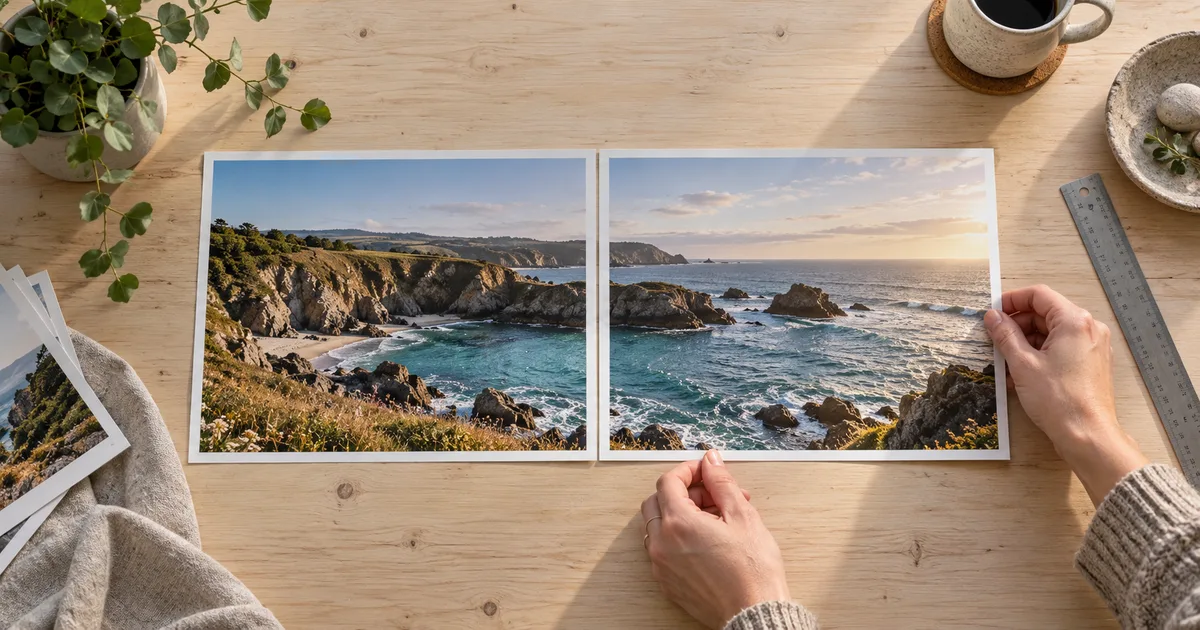

To put two photos side by side, add them to a two-column layout, choose whether each photo should fit completely or fill its frame, then export the whole canvas as one image. The important choice comes before the download: a neat square frame can quietly cut off part of your subject.
This guide uses a square watch illustration and a portrait vase illustration to show that choice. You can inspect both source files, compare the layouts and reuse the dimensions. For a genuine before-and-after comparison, there is an extra step: make sure the framing and labels let someone judge the change fairly.
The quick way: use a two-column photo grid
For a browser-based route, Adobe documents a grid workflow in Express. Start a design at the size you need, then follow these steps:
- Open Add content → Charts and grids → Grids and choose a layout with two equal columns.
- Select a frame, choose Replace, and insert the first photo. Repeat for the second frame.
- Use Reframe image to adjust the position. Check the subject's edges before accepting the crop.
- Keep a small gap between the photos and add clear labels if the order matters.
- Download the completed collage as a PNG, then open the downloaded file to inspect it.
These are documented steps, not a claim that we tested every current Express interface. See Adobe's grid instructions and photo-combining and PNG export guidance. On mobile, its grid documentation starts with the plus icon and Charts and grids; image positioning is adjusted inside the frame.
If you only need a quick combination, Adobe also documents the Photo → Collage maker route, followed by uploading images, choosing a layout and downloading. Use the full design route when labels, exact spacing or deliberate framing matter. The layout principles below apply to other editors too, even when their controls have different names.
Fit keeps the whole photo; fill hides part of it
Fit scales a photo until every edge is inside its frame. A portrait photo inside a square frame leaves empty space at the sides. That space is a consequence of preserving the whole image, not a failed export.
Fill scales the photo until the frame has no empty space. With the same portrait source, the top and bottom extend beyond a square frame and disappear. The photo is not necessarily stretched, but the viewer cannot see everything that was captured.
A third option, stretching width and height independently, changes proportions. A round watch becomes an oval or a vase becomes wider. Avoid that when the subject's shape matters. Choose a different frame, accept margins or make an intentional crop instead.
Start with fit when showing an entire object, an outfit, a document or an uncropped source. Use fill when a deliberate close composition is more useful and you have checked what it removes. You do not have to give two unrelated photos identical crops merely because they sit in equal frames.
A worked example with two different image shapes
Our source A is a 1024 × 1024 watch illustration already in the project. Source B is a newly AI-generated 1024 × 1536 vase illustration. They are independent illustrative images, not photographs of a real product comparison and not a before-and-after treatment. The assembly below changes only their placement and display scale.
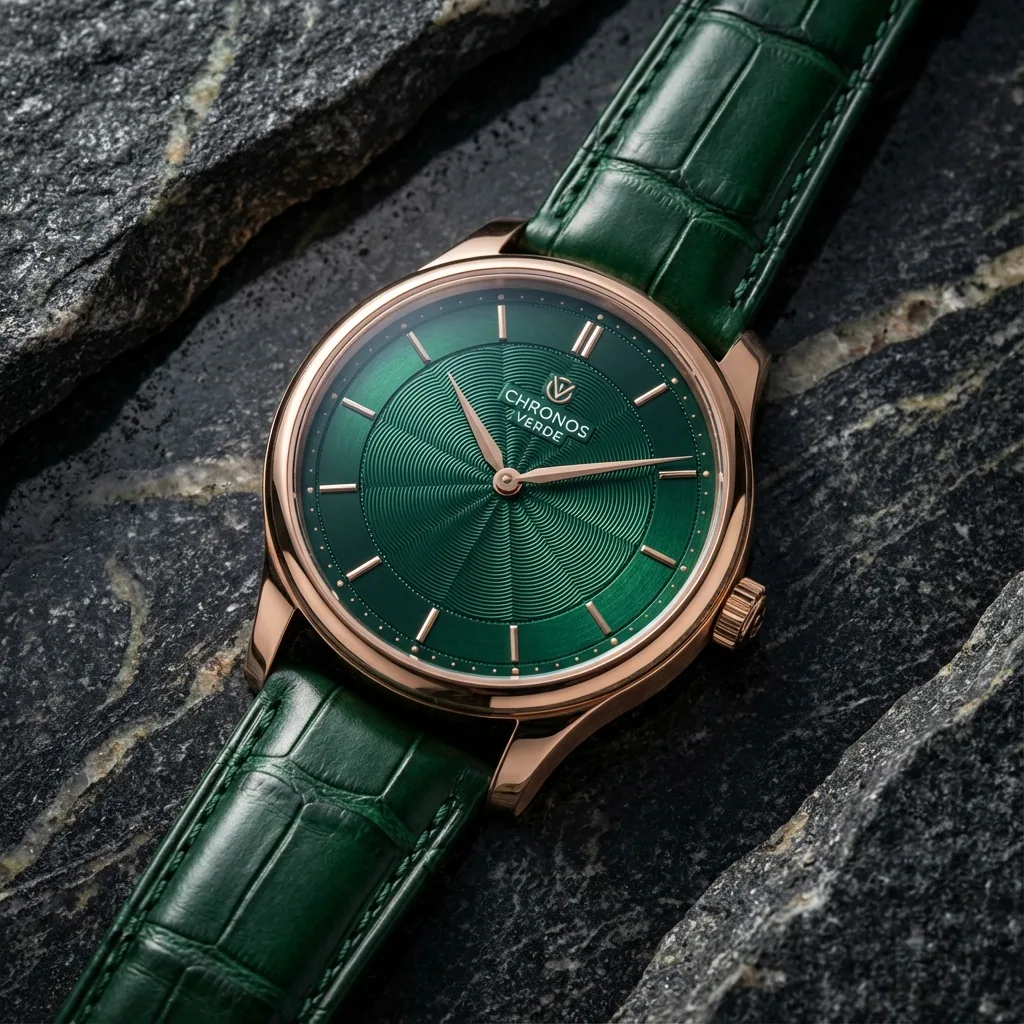
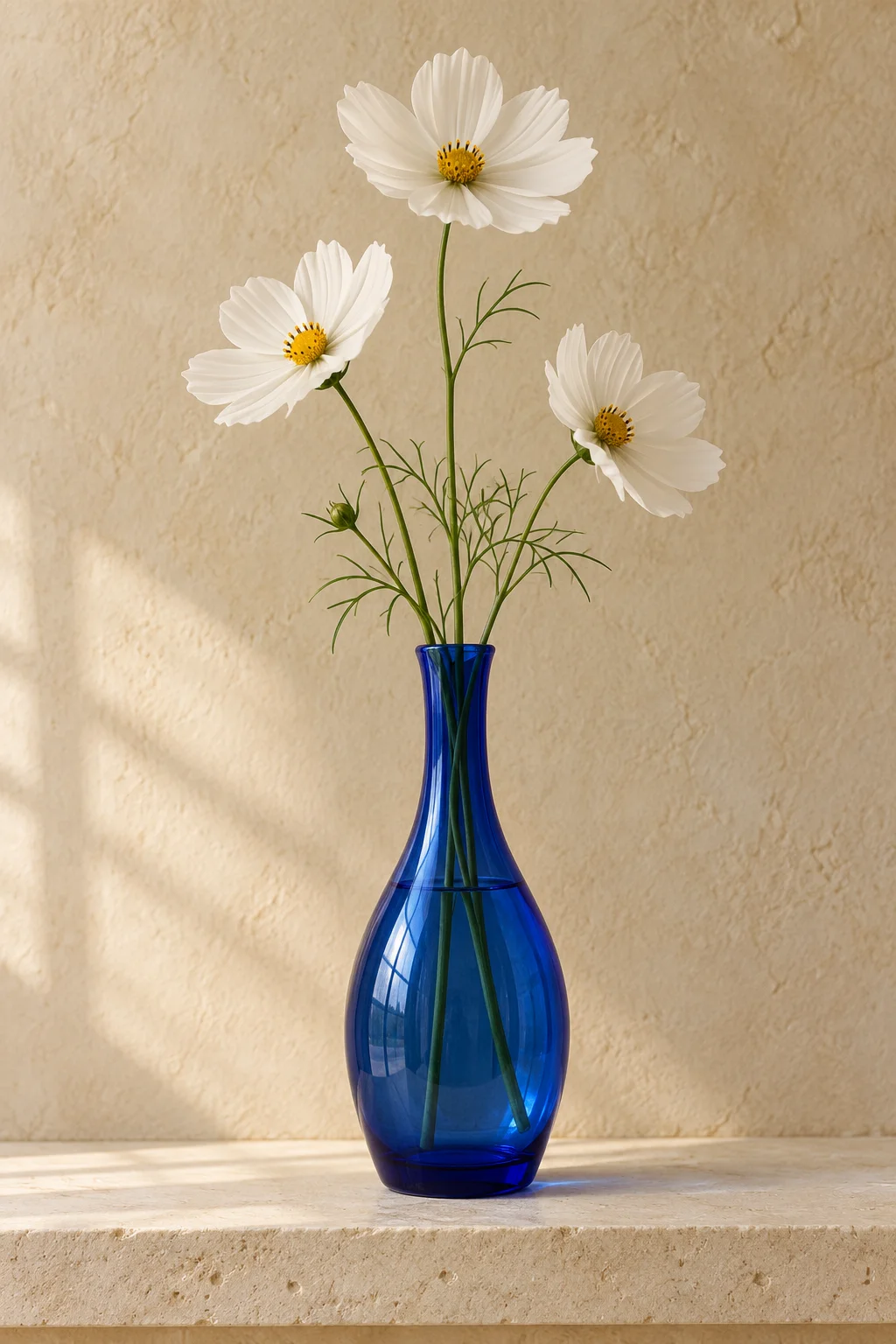
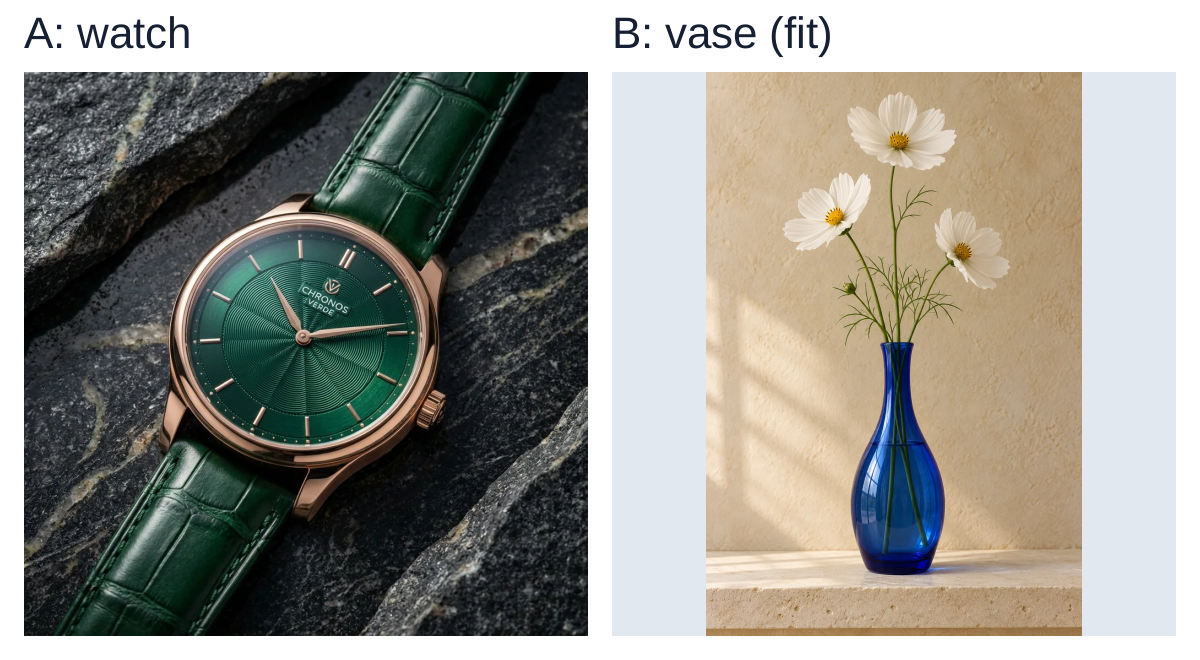
The canvas is 1200 × 660 pixels. Each image frame is 564 × 564 pixels. There are 24-pixel left and right margins and a 24-pixel gap. The image area begins 72 pixels below the top, leaving room for labels, and ends 24 pixels above the bottom.
Width: 24 + 564 + 24 + 564 + 24 = 1200 pixels.
Height: 72 + 564 + 24 = 660 pixels.
The square watch scales down evenly to 564 × 564. The portrait vase fits at 376 × 564, because its width is two-thirds of its height. Centering that image inside a 564-pixel-wide frame leaves 94 pixels on each side: (564 − 376) ÷ 2. Neither source needs enlargement.
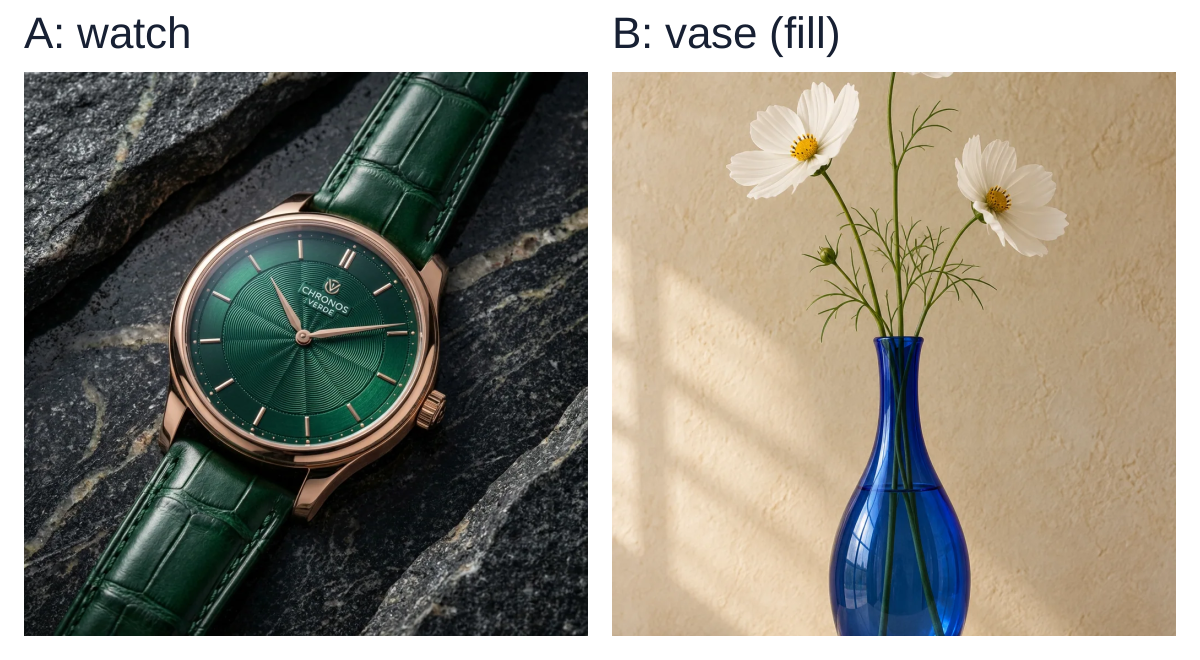
With fill, the portrait first scales to 564 × 846. The frame displays only the middle 564 pixels of its height, hiding 141 output pixels at each end. In source coordinates, that is a centered 1024 × 1024 crop starting 256 pixels down the 1536-pixel image. One-third of the source height is outside the visible crop.
That arithmetic explains why dragging the crop upward cannot recover everything: it can save the flower, but it hides more of the base. To show both, return to fit or change the frame to a portrait shape.
Download the complete-image SVG layout, the cropped SVG layout, or the layout worksheet. Both SVG files embed their image sources, so the examples do not depend on remote image links. They are demonstrations of the geometry, not an Express template.
Make a before-and-after comparison fair
For two versions of the same image, use the same source crop and display scale unless the crop itself is what you are demonstrating. If one face fills the frame while the other occupies half of it, viewers are comparing magnification as well as the edit.
Identify an unchanged reference point: the eyes in a portrait, the corners of a package or a fixed edge in a room. Align those points using translation and proportional scaling. Do not warp the subject simply to make the outlines coincide. If the camera angle changed, alignment cannot turn the pair into a controlled test.
For photos taken at different times, record the distance, lens, viewpoint and lighting when you capture them. If those conditions differ, say so in the caption. Avoid correcting only the less attractive image with a different filter, exposure or skin treatment. That can obscure what the comparison is supposed to show.
Use specific labels such as “Original crop” and “Background replaced” rather than “Bad” and “Perfect.” If you used generative editing, identify the edited version. Keep an untouched source nearby so someone reviewing the work can distinguish a real change from a presentation choice. The image reference pack workflow helps organize those originals before editing.
Choose a canvas for the destination
Our 1200-pixel-wide example is a convenient demonstration size, not a universal social-platform requirement. Start with where the combined image will appear. A wide comparison can work well inside an article and become difficult to read inside a narrow phone feed.
If both photos are portraits, two portrait frames may preserve more detail than two squares. If one is landscape and one portrait, equal-height frames with different widths can show both complete images without a large empty area. Equal squares are useful when consistency matters more than filling every pixel.
Check the smaller original before choosing the output size. Putting a 300-pixel-wide image into a 900-pixel-wide panel enlarges it three times. A larger canvas gives you more output pixels, but it does not recover missing source detail. Reduce the deliverable size or obtain a better source when detail is essential.
Leave labels as editable text until export. At the actual viewing size, confirm that they remain legible without covering the subject. If two panels become too small, a vertical stack or separate slides may communicate the comparison better. For a deliberately styled multi-photo set, use the separate Polaroid contact-sheet workflow.
Export one file and inspect the delivered copy
- Preserve the inputs. Save the layout project separately from both original photos. Give the joined export a distinct filename.
- Choose the file for the job. PNG is useful for a layout with crisp labels and flat margins. JPEG can be practical for photographic content when the receiving app accepts it. Compare the actual exports if size matters.
- Open the exported file. Confirm that it contains both panels, the expected dimensions and every label. Do not judge only from the editor's preview.
- Inspect at two scales. At full size, look for accidental crops and stretched shapes. At the intended display size, check the labels and the detail you want someone to notice.
- Preview the destination. A site or messaging app may resize the file or crop its preview. Check the copy your audience will actually see before distributing it broadly.
Keep important text away from outer edges if the destination displays a cropped thumbnail. There is no single margin that guarantees safety everywhere. A final preview is more useful than treating a template as proof that every placement will show the full image.
Fix the common layout problems
| Problem | Likely cause | Useful correction |
|---|---|---|
| Head, flower or product base disappears | Fill is cropping a differently shaped source | Use fit, reframe intentionally or change the frame shape |
| One subject looks wider | Width and height were scaled independently | Restore proportional scaling before judging the result |
| Large empty strips remain | The complete image has a different aspect ratio | Keep the strips or redesign the frame; do not stretch away the difference |
| One panel looks softer | That source was smaller, enlarged or already compressed | Compare source dimensions and use a smaller delivery size if necessary |
| The comparison seems dramatic but unclear | Scale, angle, light or labels changed along with the subject | State the differences and avoid presenting it as a controlled comparison |
How QuestStudio helps prepare a comparison
If you want to compare an original with a deliberately generated image variant, Image Lab is a useful preparation step. Decide what should change, retain the reference you are allowed to use and inspect the result before assembling the pair. Keep the original and accepted variant as separate files.
Use your layout editor to place those files side by side. Do not ask a generative model to redraw a completed comparison when the task is simply arranging existing pixels. For a product, examine labels, shape and small details before approving the variant; a pleasing layout cannot verify product accuracy.
Frequently asked questions
How do I put two photos side by side without cropping?
Use two frames with a fit or contain setting, or resize the photos proportionally to a common height and place them next to each other. Different aspect ratios may leave margins. Avoid fill when every original edge must remain visible.
Do both photos need to be the same size?
No. They can have different original dimensions. Choose their displayed size deliberately, preserve proportions and check whether the smaller source would need enlargement. Equal frames do not require identical source files.
Can I combine two photos on my phone?
Yes. A mobile layout editor can place two images into a grid. Adobe Express documents adding a grid from the plus menu, replacing each frame's image and adjusting its position. Check the crop and downloaded result just as you would on a computer.
Should I use AI to merge a before-and-after comparison?
Use ordinary layout tools when you need to preserve the source images. Generative merging can redraw details instead of simply placing the files together. If one side was intentionally generated or edited, label it and keep the original available.
A useful two-photo comparison makes its framing easy to understand. Preserve the originals, choose fit or fill deliberately, then review the single exported file at the size your audience will see.