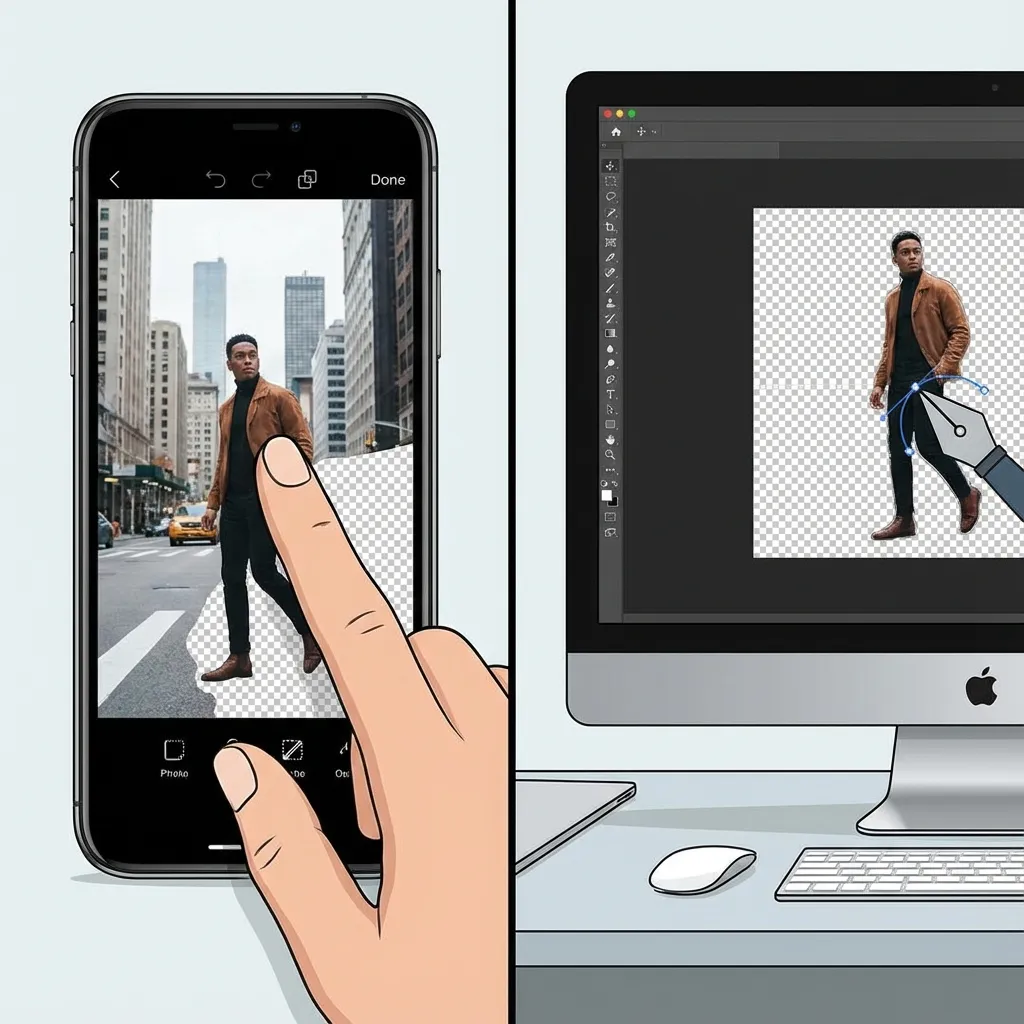
How to Remove Background From a Picture: Phone and Desktop
Image Editing • Phone & Desktop • 2026 Guide

How to Remove Background From a Picture

Phone and Desktop Methods (Fast and Clean)

Learn how to remove background from a picture on phone or desktop using built-in tools and AI methods, plus export tips and best results checklist.

Erick By Erick
Jan 2, 2026 8 min read

If you want the quickest, most consistent results on any device, use QuestStudio here: Background Remover.

But if you want built-in options on your phone or computer, this guide covers the fastest methods, how to export correctly, and when AI tools beat manual or native cutouts.

The simple rule: when to use AI vs manual tools

Use AI background removal when

  • • You want speed and decent results in one pass
  • • The background is busy but the subject is clear
  • • You want a reusable cutout (transparent PNG)

Use manual tools when

  • • The edges are complex (hair, fur, lace)
  • • The subject blends into the background
  • • You need precision for professional design work

A good workflow is: try AI first, then refine manually only if needed.

Phone methods

iPhone (built-in subject cutout)

Apple lets you lift a subject from a photo with a long press.

Steps:

  1. 1. Open the photo in full screen
  2. 2. Touch and hold the subject until an outline appears
  3. 3. Tap Copy or Copy Subject, then paste it into another app

Best for:

  • • Quick cutouts of people, pets, and objects
  • • Dropping a subject into notes, messages, or a design app

Not ideal for:

  • • Perfect hair edges
  • • Consistent ecommerce product photos

Tip: If you need a real transparent file you can reuse, you will typically want an export to PNG after placing the cutout into an editor.

Android (common options)

Android varies by brand, but you usually have two practical routes:

  • • Built-in gallery/editor tools (varies by device)
  • • Google Photos editing tools (often focused on removing objects rather than full background removal)

If your phone does not offer a clean cutout, the fastest solution is still a browser-based remover like Background Remover.

Desktop methods

Mac (Preview built-in)

Preview on macOS includes a Remove Background action.

Steps:

  1. 1. Open your image in Preview
  2. 2. Click the Remove Background button
  3. 3. If asked to convert, choose whether to make a copy or convert
  4. 4. Save, typically as PNG if you need transparency

Microsoft Office (Word or PowerPoint)

If your picture is in an Office file, there is a built-in background removal tool.

Steps:

  1. 1. Select the picture
  2. 2. Choose Picture Format
  3. 3. Select Remove Background
  4. 4. Adjust the selection box and refine areas to keep or remove

Windows (Paint background removal)

Windows Paint has added background removal features.

General flow:

  1. 1. Open the image in Paint
  2. 2. Click the Remove background button

Availability can vary by Windows version and updates, but it is becoming more common in newer builds.

Best results tips (works for every method)

Picture quality checklist

  • Sharp image, not blurry
  • Good lighting
  • Subject clearly separated from the background
  • Avoid busy patterns behind hair and hands

Edge tips that instantly improve the result

  • Do not over-erase hair and fur
  • Check fingers, straps, and small gaps
  • If the cutout looks pasted on, add a soft shadow later

Export tips: do not lose transparency

If you need a transparent background, export as PNG. PNG supports transparency via an alpha channel.

If you export as JPG, your transparent background will usually turn into a solid color.

How QuestStudio helps

Phone and desktop tools are great in a pinch, but they can be inconsistent across different photos.

QuestStudio keeps it simple:

  • Remove backgrounds quickly on any device at Background Remover
  • Get a reusable cutout for thumbnails, product photos, and marketing graphics
  • Avoid the guessing game of which device tool works best for which photo

FAQ

Can I remove a background on iPhone without an app?
Yes. You can lift a subject by touching and holding it in Photos, then copy and paste the subject elsewhere.
Can I remove a background on Mac without Photoshop?
Yes. Preview includes a Remove Background feature.
Can Word or PowerPoint remove backgrounds?
Yes. Office has a Remove Background tool under Picture Format.
What is the best format for a transparent background?
PNG, because it supports transparency.
When should I use AI instead of manual background removal?
Use AI when speed matters and your photo has clear subject separation. Use manual tools when you need precision on complex edges.

Conclusion

If you just need a quick cutout, your phone or desktop might handle it. If you want consistent, reusable results across any device, an AI remover is usually the fastest path.

Try it now in QuestStudio and export a clean cutout: Background Remover.

Ready to Remove Backgrounds?

Get consistent results on any device with AI-powered background removal.

Remove Background Now