
The name is easy to misread. Wan Animate 2 is a newer animation workflow, while Wan2.2 Animate refers to the earlier system. Following the older pose-and-mask instructions for the newer model can send you debugging a pipeline you do not need.
Download the motion and viewpoint test sheet · Build your character reference
Source status checked September 14, 2026. This is a documented workflow and original test plan, not a local GPU benchmark or a report of generated Wan results. The hero is an AI-generated concept illustration.
Verify which Animate you are using
The Wan team’s repository records an August 7, 2026 release of inference code and Base and Distillation weights. It describes direct use of a driving video and text-controlled viewpoint changes. Its model identifier includes Wan2.2-Animate-2-14B, which helps explain why search results can mix the names.
The current ComfyUI guide explicitly describes motion transfer without a separate pose or skeleton extraction stage. Its template takes a reference image and driving video, with text describing the desired scene and camera. That is the workflow this article follows.
By contrast, the older Wan2.2 Animate guide documents Move and Mix behavior and a different graph. Keep an older working project intact if you need it. Create a separate project for Animate 2 and label the template, model files, and date. “Wan test final” is not enough information to reproduce a result later.
Separate the three sources of direction
Think about the project as three instructions that must agree. The reference image establishes the character’s appearance. The driving video supplies performance and motion. The text asks for a scene and viewpoint. Problems become easier to diagnose when you can identify which input was supposed to control the failed detail.
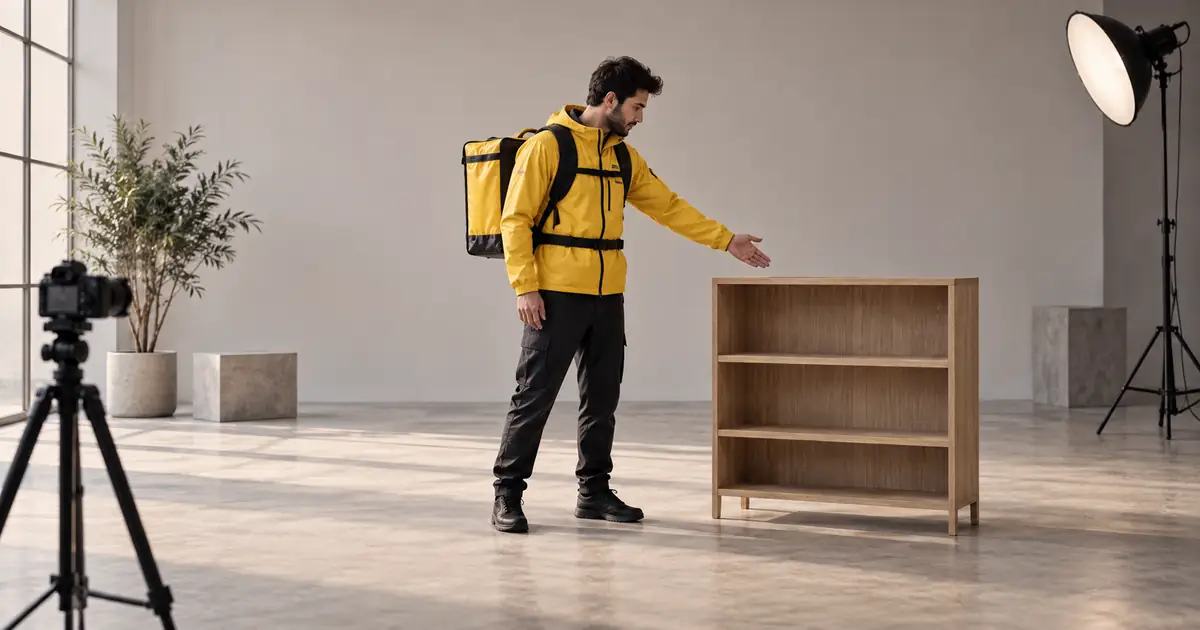
Our original exercise uses a fictional courier in a yellow jacket. A short driving clip shows an adult standing still, reaching toward an empty shelf, and returning the hand to rest. The intended result is an animated character performing the reach. The second test asks to see that same movement from a modest three-quarter angle.
This is deliberately simpler than changing the character, choreography, camera, and environment at once. A complex successful clip can be exciting, but a failed one gives you little information. A controlled reach exposes timing, hand shape, torso movement, and the relationship between the hand and a fixed location.
Prepare a reference that survives a viewpoint change
Use a clear image with a readable silhouette, visible limbs, and uncomplicated clothing. Decide which details define the courier: yellow jacket, dark trousers, black shoes, and a consistent body shape. If a backpack is part of the design, include it in the reference and your review list rather than allowing it to appear unpredictably.
You can create that character still in Image Lab. Export the selected reference and use it in the external Wan workflow. QuestStudio does not expose Wan Animate 2 as a current model option, and preparing a still does not perform the motion transfer.
A front-facing image contains limited evidence about a character’s side and back. A new viewpoint may require the generator to invent hidden details. For the first camera test, request a modest change that still shows the known side of the subject. Reserve a full orbit for a project that can tolerate or separately approve those invented details.
Load the matching template before adjusting settings
In ComfyUI, find the Wan Animate 2 workflow in the template library and follow its current model selections. The official guide names LoadImage and LoadVideo as the input nodes and distinguishes quantized, full-precision, and distilled variants. Match the template to the files you actually have rather than swapping similarly named checkpoints at random.
If a node is missing, inspect the application version and startup errors. Comfy’s guide notes that new core nodes can arrive before a stable release or cloud update. A missing node is not evidence that the character image is unsuitable. Resolve the software mismatch before spending time changing creative inputs.
Hardware requirements depend on the implementation and model variant. The original repository describes a multi-GPU research configuration; a Comfy workflow is a different execution path. Do not translate a model filename or a community screenshot into a promise that a particular consumer GPU will work. Use the requirements of the exact workflow you intend to run.
Run the baseline and camera test separately
| Pass | Keep fixed | Change | Question |
|---|---|---|---|
| A: motion baseline | Courier reference, reach clip, simple room | Nothing beyond the initial setup | Does the hand reach and return in the right order? |
| B: viewpoint | The same reference, video, and generation settings | A modest three-quarter camera request | Does the reach remain coherent from the new angle? |
| C: background | The approved motion and camera direction | A different simple room description | Does the background change without disrupting contact? |
For the camera comparison, describe the desired final view in plain language: the same courier and reach, seen from a steady three-quarter position, with the body and hand visible. Treat this as a request to test, not a guarantee of precise camera geometry. Keep a record of every setting you can hold constant.
Review corresponding action phases rather than two attractive thumbnails. Compare the resting pose, the start of the reach, the furthest extension, and the return. If the new view looks convincing only before the hand moves, the camera test has not passed.
Diagnose contact, identity, and camera separately
The hand misses the shelf: inspect whether the new background placed the shelf somewhere else. Motion can resemble the driving clip while becoming incompatible with a newly imagined environment. Simplify the background or remove the contact requirement before trying a more ambitious scene.
The jacket or backpack changes: compare the reference to the same phase in each output. A sudden design change is an identity problem, even if the gesture looks smooth. Reduce simultaneous edits and make the defining visual details less ambiguous.
The camera moves when you wanted a fixed view: simplify the viewpoint instruction. Remove competing words such as orbit, tracking, and push-in from the same request. Then check the background edges as well as the subject; a moving subject against a stable background is different from a moving camera.
The output imitates motion but loses its purpose: return to the source action. A reaching hand needs a target the viewer can understand. If the new viewpoint hides that target, choose a different angle even when the motion itself is acceptable.
Choose the shot you can explain and reuse
Keep the approved reference, source clip, template version, model variant, text, and output together. Record which action phases passed and what remains uncertain. If a clip works only after cropping out a broken hand, note that limitation before building the next scene around the same setup.
The deliverable from this exercise is one approved motion-and-camera relationship. You can then explore a second action or more complex background with a known starting point. That is more useful than a folder of unrelated experiments whose successes cannot be traced to a specific input.
Frequently asked questions
Is Wan Animate 2 the same as Wan2.2 Animate?
No. The current Animate 2 workflow uses direct driving-video input. The earlier Wan2.2 Animate guide describes a different workflow with Move and Mix behavior.
Do I need to extract a skeleton first?
The official ComfyUI Wan Animate 2 guide says separate pose or skeleton preprocessing is not required for that workflow. Do not import older preprocessing steps automatically.
Can I change the camera independently of the motion?
Text-driven viewpoint control is documented, but the result still needs review. Test a modest viewpoint change while keeping the character and source motion fixed.
Can I run Wan Animate 2 inside QuestStudio?
It is not a current QuestStudio model option. Use Image Lab to prepare a reference, then run the matching Wan workflow externally.