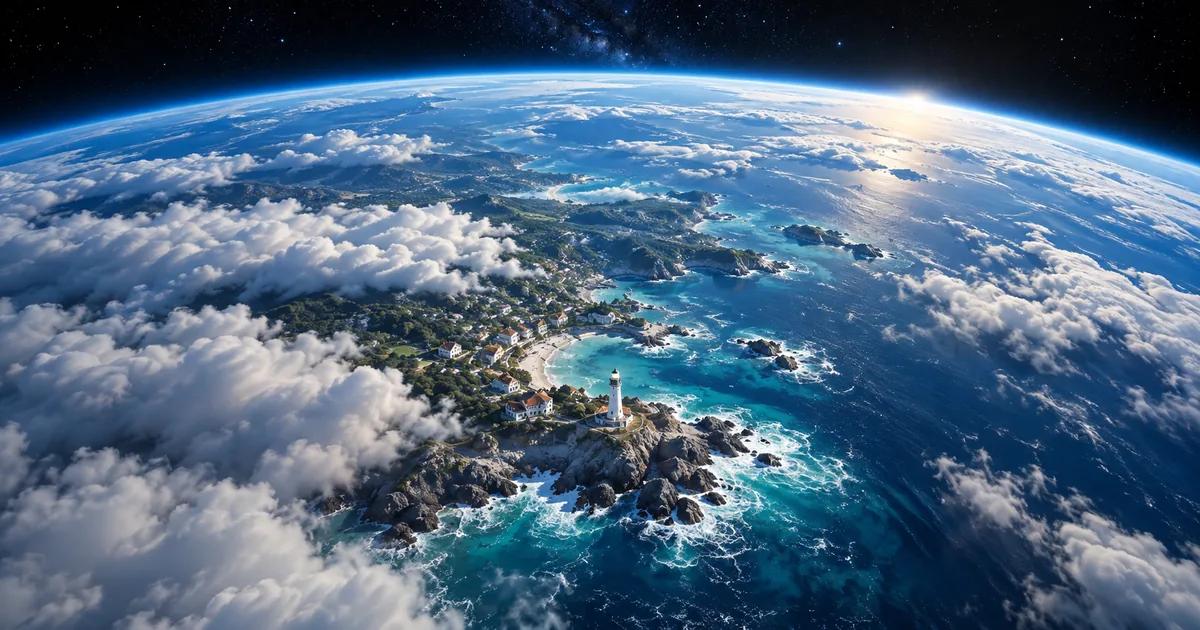

An AI Earth zoom out video starts on a person or place and pulls away until the planet appears. The effect fails when the street becomes a different city, the subject stretches instead of shrinking, or the final globe arrives as an unrelated cut. A four-stage plan makes those failures easier to diagnose.
Download the planning worksheet · Test a short camera pullback
Prepared September 18, 2026. Original planning examples; AI-generated hero illustration.
Choose an effect or an accurate location sequence
Decide what the audience should learn from the zoom. A playful travel transition can use invented intermediate scenery. A location explainer that claims to show a particular street, coastline, or region needs verified geography. A generative model can produce a convincing-looking route without reproducing the actual map.
For a factual route, work from appropriately licensed or permitted geographic imagery and an animation workflow built around known locations. Keep source attribution where required. Do not place a precise location pin on an invented city and assume the result has become accurate. For the creative effect in this guide, we use an imagined lighthouse town so the generated geography is part of the illustration.
Prepare a starting photo that can open outward
An outdoor medium or wide image is easier to explain spatially than a tight face crop. Include enough environment to establish where the subject stands. Give the camera a plausible upward escape: sky above a courtyard, an open beach, or a rooftop with visible surroundings. An indoor selfie requires the model to invent a wall or ceiling transition before the journey has even begun.
Choose one visual anchor, such as a white lighthouse, red umbrella, or circular plaza. The anchor should remain recognizable while it becomes smaller. Avoid a tiny face as the only anchor because its identity becomes unreadable early in the pullback. Crop for the intended final format before generating; a later vertical crop can remove the very feature that made the location readable.
Save a clean source without arrows, map pins, captions, or decorative frames. Add those as separate layers after the motion passes. If the original has a tilted horizon, decide whether to preserve the tilt or correct it first instead of leaving the model to guess.
Map the four changes of scale
The following eight-second plan is an editorial timing example, not a guarantee that a model will follow exact timestamps. Use the closest supported duration and adjust the proportions. Most of the travel happens between the first recognizable scene and the final readable globe.
| Phase | Example time | Visible information | Pass condition |
|---|---|---|---|
| Establish | 0–1.5 seconds | Lighthouse and immediate coast | Anchor is recognizable |
| Expand | 1.5–3.5 seconds | Town, bay, larger coastline | Anchor shrinks without melting |
| Transition | 3.5–6 seconds | Cloud layer and atmosphere | Camera keeps a readable direction |
| Resolve | 6–8 seconds | One Earth against space | Movement eases and ending can be read |
Do not spend nearly the whole clip on the face and expect the last half-second to communicate the entire planet. Conversely, a globe that appears immediately loses the scale story. The first and last beats deserve enough time to be understood even when the middle accelerates.
Choose the generation route
Higgsfield's effects collection currently lists Earth Zoom Out. A dedicated effect is the direct route when its preview matches your intended movement. Open the effect, provide the requested source image, review the controls shown in your account, and make a small test before building the finished sequence. Do not assume settings from an old tutorial still describe the current model.
For another documented route, Magnific's January 2026 guide demonstrates its Zoom Out template with Kling 2.6. That is a specific published recipe, not a universal setting recommendation for every video generator.
A general image-to-video model can also attempt the movement, but ordinary pullback support does not imply a reliable photo-to-planet transition. If it produces a useful aerial reveal but never reaches space, keep that segment and plan the remainder separately. Select an output length supported by the workflow rather than putting an unsupported number in the prompt.
A prompt with a route and an ending
The prompt separates subject behavior from camera behavior. It names intermediate views and a final state. It cannot guarantee that the model will infer true geography or hold every intermediate structure. Compare the generated motion with the plan rather than judging only the spectacular final frame.
If your first attempt rotates wildly, simplify the route to a backward-and-upward movement without an orbit. If the lighthouse stretches, begin from a wider source or shorten the local segment. Keep the original prompt and note the specific change, so a better result teaches you something.
Repair one failed transition with two segments
Suppose the lighthouse-to-town movement works, but the coastline dissolves into a second planet. Do not discard the useful opening automatically. Export the local segment up to a frame where clouds cover enough detail to support a transition. Create an orbital segment that begins with a similar cloud color, camera direction, and light position, then resolves on the globe.
Place both segments in a normal video editor. Choose the join where their motion and dominant shapes agree. A brief dissolve may help when cloud detail overlaps; a cut through a full cloud cover may be cleaner. Test the join without music, blur, or flashes first. Those additions should support an already readable movement, not conceal a different camera direction.
If first-and-last-frame controls are available, use them to define the desired endpoints for a segment. They still require review of the intervening motion. See the endpoint planning guide when the handoff between segments is the hard part.
Inspect the middle, not just the start and finish
Watch at normal speed, then pause around each scale transition. Track the anchor until it becomes too small to matter. Does it shrink smoothly or change into a different object? Do coastlines remain oriented consistently? Does the camera reverse direction without a story reason? Does the globe look like one sphere, with a plausible atmosphere rather than several nested worlds?
Review the last second separately. A clean ending gives you somewhere to place a title or cut into the next scene. If the model ends on an unstable frame, trim earlier and use a short hold only if that still looks natural. Avoid slowing a severely damaged transition simply because slow motion feels cinematic.
- Ground subject holds shape before leaving view.
- The first environment relates to the source.
- The cloud transition preserves motion direction.
- The planet is a single readable object.
- The final crop retains the important anchor and ending.
Use sound to describe distance
Start with an appropriate quiet local sound, such as sea wind for the lighthouse. Let it recede as the camera pulls away. A controlled rising whoosh can describe acceleration; a gentler musical release can mark the globe reveal. Keep effects out of the way of narration if the clip introduces a spoken story.
Reversing the finished video can create a zoom-in variation, but the audio must be rebuilt. Reversed waves, breaths, and impact tails often reveal the trick. Also inspect whether people and moving objects behave sensibly backward. Use the reverse as a creative option, not an automatic second deliverable.
How QuestStudio helps
Use Video Lab to test a source-image pullback with an available compatible model. A small, readable local reveal is a useful first result even when the full effect needs a dedicated external template. Plan and assemble multi-segment joins in your editing workflow; QuestStudio is not being presented as a native Higgsfield effect integration.
Keep the four-stage worksheet beside the preview. Fix the first broken transition, then export the version whose motion still reads clearly at phone size.
Sources and example notes
Official effect listings and the Magnific guide were reviewed September 18, 2026. The eight-second plan and lighthouse prompt are original production examples, not measured provider results. The hero deliberately illustrates an impossible continuous change of scale and should not be read as satellite imagery.
Frequently asked questions
How do I make an AI Earth zoom out video?
Start with a readable outdoor photo, choose a dedicated effect or compatible image-to-video workflow, and describe the route from the subject through the local environment and clouds to one globe. Inspect every transition before editing and export.
Does the Earth zoom out effect show the real location?
A generated transition can invent intermediate geography. Use a workflow built on verified geographic imagery when the location itself is factual information.
Why does my subject stretch instead of getting smaller?
The model may be transforming the subject instead of moving the camera. Clarify that the subject stays still, try a wider source, or isolate the local pullback as a shorter segment.
Can I create the effect from an indoor selfie?
It is possible to attempt, but the model must invent an escape through the surrounding room. An outdoor image with visible environment gives the camera a simpler route.
What if the model never reaches the planet?
Keep a usable local reveal and generate an orbital segment separately. Match direction, lighting, and cloud appearance, then join them in an editor.