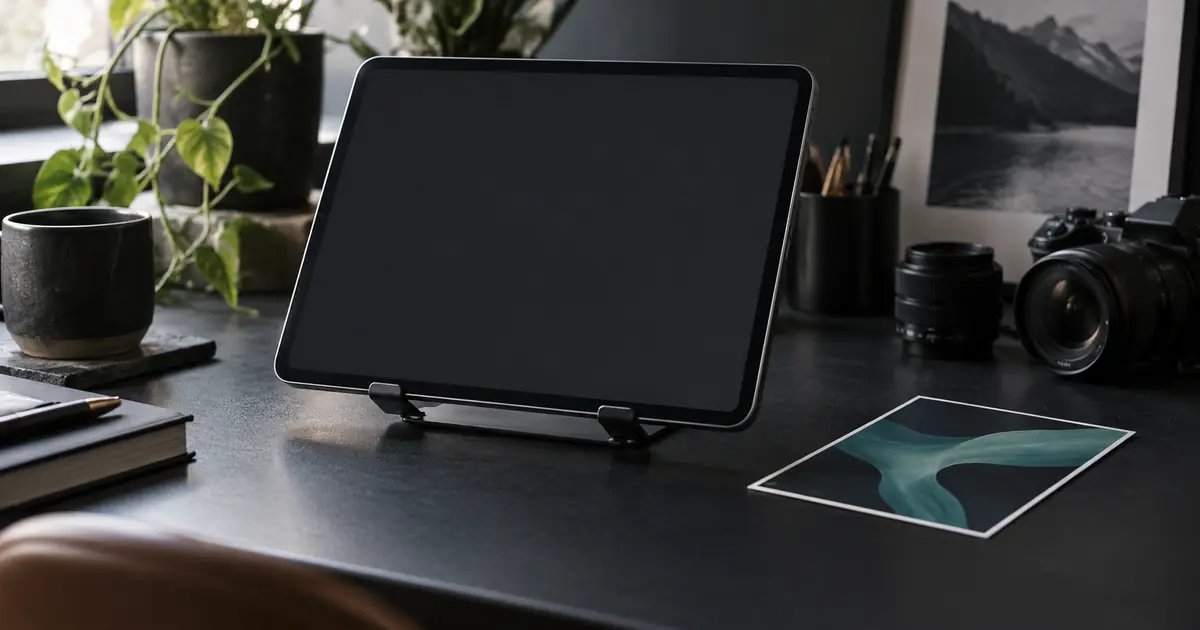

For a product video that shows real software, generate the setting and composite an approved screen recording into the device. Track the display surface, keep its bezel visible, and inspect the result through the entire shot. Asking a video model to redraw your interface can change labels, states and actions that the demonstration needs to preserve.
Our original planning example shows a tablet on a reception desk while a fictional booking interface changes from an available appointment to a confirmation. It is a production exercise, not a tested app demonstration. Download the screen-insert worksheet to record source files, tracking decisions and review points.
Decide what the viewer must read
Choose one real interaction to demonstrate. In the example, the viewer should see a selected time and a clear confirmation. They do not need to read a dense navigation menu, every calendar day or a paragraph of terms in the same short shot.
Record the actual product with appropriate demo data. Hide unrelated notifications and private information before capture. Begin with a short hold, perform the action, and leave enough time to understand the resulting state. If the action fails during recording, capture a successful genuine take instead of painting a fictional success state into the video.
The SaaS explainer workflow covers how this demonstration fits a larger script. Here, the focus is narrower: making those genuine pixels remain attached to a device surface without becoming unreadable.
Plan a device that can support an insert
Start with a tablet on a stand, a visible bezel and no hand crossing the screen. A modest angle makes the object feel dimensional without compressing the display into a narrow sliver. Keep the camera still for the first version.
Inspect the generated clip before recording a final insert. If the tablet bends, its corners change count or the screen opens into a different shape, a simple four-corner track will not fix the underlying geometry. Choose another generation or redesign the shot.
Do not assume a “locked camera” request produces zero movement. Even a small drift matters when sharp UI edges meet the bezel. The shot should be reviewed as source footage, with actual motion measured by the tracking workflow.
Separate the files and versions
Keep the generated plate, original screen recording, tracking data, foreground masks and composition project separate. Name them by role and version. For example, tablet-plate-v1, booking-screen-v2 and tablet-composite-v3 communicate which asset changed.
Record the source frame rate and dimensions in the worksheet. Set up the editing project deliberately and interpret footage correctly. If the screen recording has variable timing, follow your editor's recommended preparation workflow before relying on precise frame relationships.
Choose the timing of the real interaction before polishing reflections and blur. If the confirmation arrives after the shot ends, the composite cannot communicate the intended result. Trim the plate or adjust the edit around the action, while preserving the meaning and speed of the demonstrated behavior.
Track the surface before adding polish
Use your editor's appropriate tracking and perspective tools. Adobe's tracking documentation describes corner-pin workflows that map content to a tracked four-sided area. Follow the controls for your editor and version.
Track stable surface features such as the bezel rather than animated content inside the screen recording. Fit the insert to the inner display boundary, not the outside of the device. Preserve the recording's intended composition by cropping or laying it out deliberately before applying the perspective transform.
Test the track with an obvious temporary grid in your compositor. It makes sliding, bending and corner errors easier to see than a busy interface. Remove that diagnostic layer before the final export. A clean first frame is insufficient; inspect the middle, the end and any change in motion.
| Review point | What to inspect | Why it matters |
|---|---|---|
| Opening hold | Four corners and bezel | Reveals initial fit errors |
| Largest movement | Edge attachment | Exposes tracking drift |
| Interface action | Button and resulting state | Confirms the real interaction remains readable |
| Closing hold | Final fit and complete result | Catches late drift and premature cuts |
Handle occlusion as a separate layer
A hand passing over the screen must appear in front of the inserted recording. That needs an appropriate foreground mask or other compositing method. The insert should not cover the fingers, and the mask should not cut away genuine parts of the display unnecessarily.
For a first production attempt, remove the crossing from the shot plan if it is not essential. A tablet on a stand can demonstrate an interface without a generated hand touching every button. If touch interaction is essential, plan the contact timing and obtain suitable footage instead of hoping a generic mask will solve it later.
Review the edge of each crossing at full resolution and normal playback speed. A mask can look acceptable on a paused frame while flickering in motion. Avoid excessive feathering that creates a soft halo around a finger against a sharp screen.
Match appearance without obscuring the evidence
The inserted recording should belong to the scene, but it must remain legible. Match brightness, color and sharpness conservatively. A pristine screen may look pasted on if the plate is soft, while too much blur can remove the very button or confirmation the video needs to show.
Reflections and glare should follow the scene's lighting. Do not add a bright decorative streak across the important result merely to make the device look expensive. If a reflection is useful, keep it on a separate controllable layer and review the action beneath it.
Watch the composite in the final aspect ratio and at realistic mobile size. If the confirmation cannot be read, use a closer device shot or a separate full-screen insert. Increasing sharpness is not a substitute for giving the information enough pixels and time.
Make revisions without regenerating the product
Suppose the approved interface changes the appointment label. Capture the updated real screen and replace that source in the composition. Reuse a valid plate and track when the device shot has not changed. Review the timing again because even a small UI revision can affect layout or the duration of the action.
Keep a revision manifest: which screen file, which plate, which track, which export. The creative-asset versioning guide helps prevent an old recording from returning during a later export.
If the plate changes, do not assume the previous track still fits. A visually similar tablet can have different corner positions, motion or perspective. Recheck the geometry before reusing any masks or appearance settings.
How QuestStudio helps
Use Video Lab to generate a simple supporting device shot, then inspect it for stable geometry. If you need a specific starting composition, prepare a reference image and use a compatible image-to-video workflow.
The real interface recording, planar tracking, corner pinning and foreground masks belong in an appropriate compositor or video editor. QuestStudio's role here is producing source footage you can evaluate, not automatically verifying software behavior or replacing a tracked screen.
For a wider edit, use the AI video editing workflow to keep the insert consistent with narration, surrounding shots and the final export.
Frequently asked questions
Should I generate the app interface with the video model?
Use a real recording when the video demonstrates actual software behavior. Generated interface details can change names, controls and results.
Does a static camera mean tracking is unnecessary?
Only if the actual display remains fixed in the footage. Inspect the clip; generated shots can drift even when the prompt asks for a locked camera.
Can corner pinning repair a bending tablet?
A simple corner pin cannot reliably correct arbitrary changes in device shape. Choose a more stable source or use a more involved repair workflow.
Why does the inserted screen cover a hand?
The hand needs a foreground occlusion mask or equivalent compositing treatment. A screen insert alone does not know which objects should appear in front.
What should change when the product interface is updated?
Replace the approved screen recording and review timing, layout and readability. Reuse the plate and track only when their geometry remains valid.
Approve the action and the attachment
A useful screen replacement passes two checks: it shows the real product doing the intended action, and it stays attached to the device throughout the shot. Plan for both before adding decorative polish.
Create a trackable device shot in Video Lab
Hero image: AI-generated editorial illustration. Examples are original planning exercises, not measured model tests.
Continue with a useful next step
 Video
VideoOpus Clip ClipAnything Tutorial: Find Clips That Keep the Context
Use ClipAnything prompts to find useful moments in long videos, then check source context, clip boundaries, captions, and the promise of each short.
 Video
VideoVertical Video Safe Zones: Keep Products and Text Clear
Check vertical video safe zones against real placement overlays. Keep products, captions and calls to action visible throughout motion and at the final frame.
 Video
VideoAI Interview B-Roll: Build a Shot List From a Transcript
Build an interview B-roll shot list from transcript beats. Choose real footage, diagrams or AI illustration, then check relevance, continuity and edit fit.