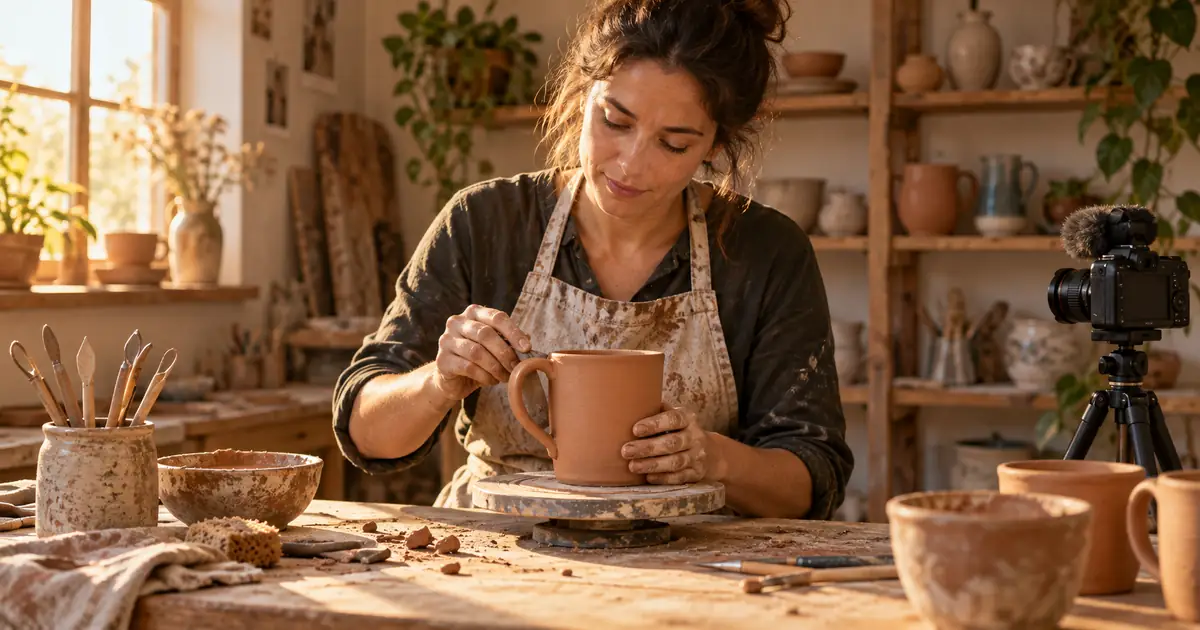

A short clip can contain the most dramatic moment in a recording and still tell the wrong story. The useful part of ClipAnything is finding candidate moments quickly. Your editorial job is deciding where each moment begins, what it proves, and whether the ending earns the opening.
Download the clip selection worksheet · Create a cover-frame concept
Editorial workflow checked September 14, 2026. The workshop example and review method are original planning exercises, not measured Opus outputs. The hero is an AI-generated illustration.
Know what the prompt controls
Opus describes ClipAnything as a way to locate moments using visual, audio, and emotional information, including material with little dialogue. Upload or link your source, select ClipAnything as the clip model, and use the available genre, prompt, and caption options for your project.
The official prompt manual makes an important distinction: the prompt finds content. Cropping, effects, audio changes, and similar edits belong in other controls. It recommends English prompts; that recommendation is separate from the language spoken in your recording.
Think of the prompt as a request to an assistant who has watched your footage: “Find the moment when the potter explains why the handle fell off.” That assistant can locate evidence. They cannot make a missing explanation appear. If you ask for a punchy vertical montage with animated captions, you have mixed content selection with finishing instructions and made the result harder to judge.
Start with a source map, even a rough one
Our exercise uses a twelve-minute pottery demonstration that you own or have permission to edit. The presenter introduces the materials, attaches a handle, notices a weak join, explains the problem, repairs it, and shows the finished mug. These are different editorial opportunities. They should not all become versions of “Watch what happens next.”
Before searching, skim the recording and write a rough map of its sections. You do not need a transcript of every breath. Note where the demonstration starts, where something changes, and where the explanation finishes. This small amount of context helps you notice when an impressive result comes from a less useful section.
Keep the full source available beside the candidate clips. If a clip starts with “That is why this failed,” go back far enough to identify “that” and “this.” A viewer arriving from a feed has none of the knowledge accumulated during the previous eight minutes.
Write three genuinely different clip briefs
| Clip job | Search prompt for the exercise | Evidence required |
|---|---|---|
| Explain a mistake | Find the moment the potter explains why the mug handle separated from the body. | The failed join and its stated cause |
| Teach the repair | Find the demonstration of repairing the handle attachment, including the preparation before pressing it into place. | The preparation and attachment action |
| Show the result | Find the finished mug and the presenter explaining what changed after the repair. | The final object and a supported takeaway |
These prompts are original examples. Adapt the nouns and actions to the footage you actually have. A bicycle repair, a software walkthrough, and a cooking lesson each need a different kind of proof. The common principle is that the viewer should learn one complete thing.
Do not ask for the “most viral” moment as your only criterion. It gives you no useful acceptance test. For an educational account, a quieter explanation may attract fewer casual viewers but more people who want the next lesson. That is a reasonable creative choice, not a promised conversion advantage.
Approve context before trimming seconds
For each candidate, watch its beginning and ending in the original recording. Ask what the presenter knew at that point. Was the comment a prediction, a joke, a correction, or a conclusion? Cutting a correction away from the mistake can reverse the meaning even when every remaining word is authentic.
In the handle example, a dramatic separation without the explanation might imply that the entire technique fails. Adding the sentence about inadequate surface preparation gives the viewer a specific lesson. If the source does not establish the cause clearly, write a more limited title: “A handle repair during a pottery demo” is more defensible than a universal claim about the best attachment method.
Then trim to the shortest complete unit. Remove waiting, repeated setup, and irrelevant detours before cutting the action that proves the lesson. If the explanation cannot fit the intended runtime, choose one smaller lesson or make a longer clip. A strict length target is not a reason to leave an instruction incomplete.
Check the crop against the action
A face-centered crop can work for commentary and fail during a hands-on demonstration. In this exercise, the join between the handle and mug is the evidence. If the crop follows the presenter’s face while the hands move off-screen, the clip loses its value.
Scrub the point just before contact, the contact itself, and the reveal after the hand moves away. Make sure captions do not cover those areas. If a vertical crop cannot contain the hands and object, consider a wider inset or another source angle in your editor. Enlarging blurry detail does not create a clearer demonstration.
Review the final clip with sound muted. You should still understand what object is being discussed and where the action occurs. Then listen without looking. The explanation should make sense without a missing visual reference such as “over here.” These two passes expose different weaknesses.
Make the cover and caption promise match
The cover is a compact statement of what the viewer will receive. For the repair clip, a frame showing the actual join is stronger evidence than an unrelated perfect mug. If you need a stylized educational cover, Image Lab can help make a concept; keep it visibly illustrative and avoid presenting generated damage or repairs as footage from the demonstration.
Use a title such as “Why this handle needed another pass” only if the clip answers that question. Correct material names and process terms in the captions. Automatic transcription can mistake a specialist word for a common one, and a confident-looking caption makes that mistake easier to repeat.
For multiple shorts from the same source, change the teaching job, not just the opening sentence. One clip explains a failure, another demonstrates preparation, and a third compares the result. Link them as a useful sequence. Publishing three nearly identical reveals gives returning viewers little reason to continue.
Keep a decision record for the next recording
Save the source filename, selected range, search prompt, final title, and the reason the clip was approved. Add one note about what was missing. Perhaps the presenter blocked the repair with a hand, or the camera stopped before the final comparison. Those observations improve the next recording more than collecting another hundred generic hook ideas.
Track audience response after release, including whether viewers reach the tutorial or next creation step. Treat views, completion, and account creation as separate outcomes. A clip can be entertaining without bringing the right audience to your site, so compare similar teaching jobs before concluding that one prompt style is better.
Frequently asked questions
Can ClipAnything search footage with little dialogue?
Opus documents visual and audio-based moment finding, including low-dialogue material. Check that the selected action is complete and understandable in your actual source.
Should I put crop and effect instructions in the prompt?
Use the prompt to describe content to find. Opus directs editing tasks such as framing and effects to the relevant editor or template controls.
What if the best moment needs a long explanation?
Choose a smaller complete lesson or allow more runtime. Cutting the qualification or the evidence can make a short clip misleading.
Does QuestStudio run ClipAnything?
No. Use Opus Clip for source selection and editing. QuestStudio Image Lab can support a separate cover concept after the clip’s promise is clear.