
A drawing tablet is worth considering when your photo work involves repeated brushing, masking or retouching. It is less compelling if you mostly crop, move sliders and write prompts. Start by choosing between a screenless pen tablet and a display you draw on, then check the software where you actually edit. A pressure-sensitive pen only helps when that application uses its input.
A product to consider
Check the fit below, then select Buy on Amazon for the current offer and buying options. We may earn a commission from this paid link.
Wacom Intuos Small, wired (CTL4100)
For trying screenless pen input with an existing computer
Consider the black wired Small model if you want to practice local brush and selection work without adding another screen. It needs a compatible computer and application; it is not a standalone tablet, Bluetooth model or pen display.
Download the practical worksheet
Original blank CSV worksheet. Record your own setup and observations.
Buy for the editing action, not the AI label
List three actions you repeat on real projects. Examples include refining a product outline, painting a local adjustment and cleaning a small background distraction. These actions can benefit from a pen-like movement. Typing a prompt, choosing a model or waiting for an image to generate usually does not require specialized input hardware.
Keep the editing problem separate from the input problem. A tablet may help you place a mask more deliberately, but it cannot prove what a hidden object looked like or prevent an image model from inventing detail. In the fence-removal workflow, for example, careful selection and honest review still matter after the wire is removed.
Before buying, try your current mouse or trackpad on one small task and save the result. Note where it feels awkward: tracing a curve, changing brush size, reaching a shortcut or maintaining control at high zoom. A specific frustration gives you a useful acceptance test for a new device.
Understand the three device categories
| Type | Where you look | Main buying question |
|---|---|---|
| Screenless pen tablet | Your existing computer monitor | Can you adapt to moving the pen separately from the image? |
| Pen display | The screen under the pen | Does its display, connection and desk footprint fit your workflow? |
| Standalone tablet computer | Its own screen and applications | Do its apps and file exchange support your complete project? |
A screenless tablet uses your existing monitor, leaving the image unobstructed by your hand. The learning step is coordinating a pen on the desk with a pointer on the screen. A pen display makes that relationship more direct, but adds a screen whose color, resolution, connections and placement you must assess.
A pen display is not automatically a standalone computer. Some need both a computer connection and separate power. A tablet computer runs its own operating system and may use a different version of your editing application. Check the actual project round trip, including layers and export formats, before treating those categories as interchangeable.
A modest starting option: Intuos Small wired
The Wacom Intuos Small CTL4100 is a conditional starting option for someone who wants to try screenless pen input on a compatible computer. It avoids adding another display and uses a wired connection. The selected Amazon option is Small, Wired, one unit. The similarly named wireless and medium versions are different purchase choices.
Wacom's exact-model page lists a battery-free pen with 4,096 pressure levels and four customizable ExpressKeys. Those are manufacturer specifications, not a QuestStudio measurement of precision. More pressure levels on a competing device do not by themselves show which pen will feel better for your editing.
This is an established entry-level product, not a newly released AI accessory. Consider it when the current offer, driver support and small working area fit your task. Skip it if you already know that you need to draw directly on a display or prefer broad arm movements that a small surface makes uncomfortable.
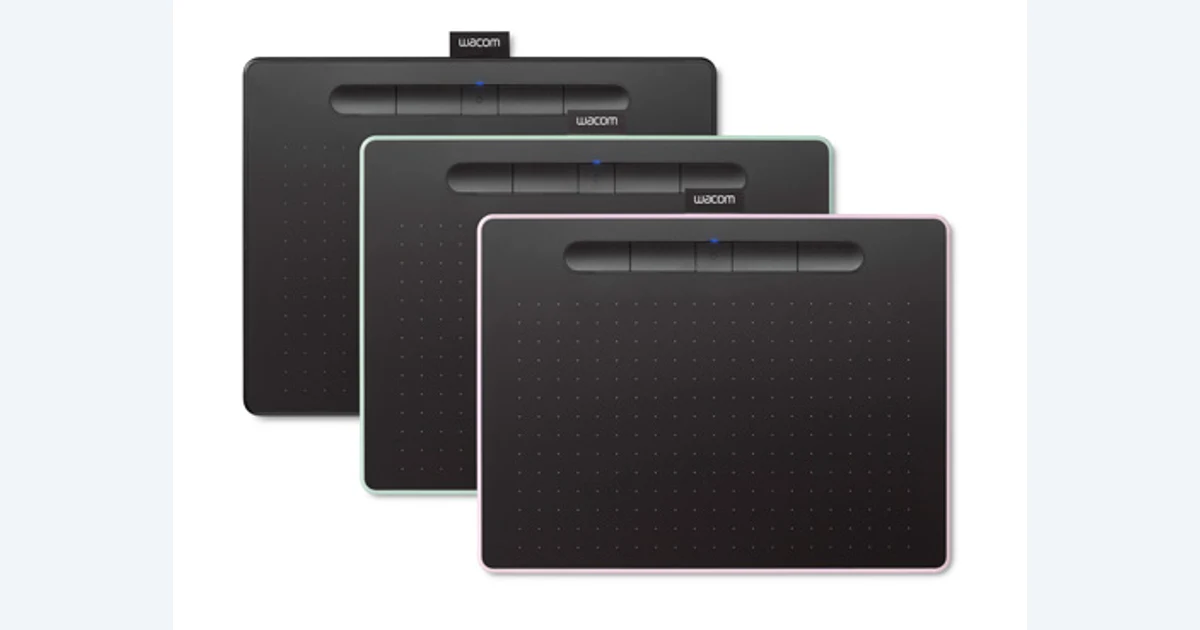
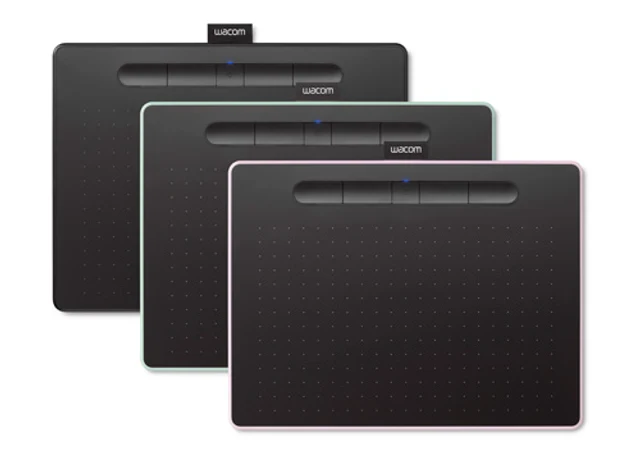
The photo identifies the Intuos family and shows other colors for context. The linked model is the black wired Small tablet. Do not infer Bluetooth, a screen or multiple tablets from the family photograph. Check the listing's selected variant and included items before ordering.
Read reviews for tradeoffs, not borrowed certainty
DL Cade's PetaPixel comparison describes firsthand use of tablets and pen displays for photo editing. The useful category tradeoff is direct interaction versus cost, desk space and display compromises. It does not test the linked CTL4100, and its 2020 prices, display specifications and iPad observations should not be treated as current buying facts.
When reading a newer review, check which application and operating system the reviewer used. A drawing demonstration can show comfortable line work without establishing your photo editor's pressure behavior. Look for the exact device size, working posture and connection, not just an attractive finished illustration.
We have not tested this equipment hands-on. The recommendation combines documented capabilities with a specific use case. Your own acceptance check should decide whether the device improves control enough to justify keeping it.
Check software and desk fit first
Use Wacom's driver support page to verify your exact tablet and operating system before buying. Also check your editing application's input settings. Do not assume a tablet that moves the pointer will automatically change brush size or opacity with pressure.
For a first setup, map the tablet to the monitor you edit on, following the driver instructions. Mapping a small tablet across multiple large displays can make fine placement harder. Preserve the intended proportions so circles and brush movement behave as expected. Start with a simple configuration before adding application-specific shortcuts.
Place the tablet where your forearm can move comfortably, keep the keyboard within reach and try a light grip. Choose only a few initial shortcuts, such as undo and brush size. If you constantly look down to find a button, simplify the mapping. There is no benefit in memorizing a complicated control scheme for a task you perform once a month.
A wired tablet may need a suitable adapter for your computer. The USB connection guide explains why connector shape alone is insufficient. Use the manufacturer's supported connection instead of buying a high-speed cable simply because its specification sounds impressive.
Try a same-image mouse and pen exercise
Use a photograph you own and keep an untouched original. Choose a noncritical edge, such as a simple object against a plain background. Avoid starting with hair, a face or a detailed product label. Those introduce image-reconstruction problems that can obscure whether the input device helps.
- Mouse baseline: trace or paint a small selection in your editor. Save the mask or a screenshot and record where you overshot.
- Pen practice: repeat the task on a fresh copy after learning the basic mapping. Keep zoom, brush size and image dimensions comparable.
- Pressure check: if the application supports it, vary pressure deliberately and verify the selected brush property responds.
- Delivery check: inspect the result at full size and normal viewing size. Look for cut edges, halos and unintended alterations.
Record your own time, edge corrections and comfort notes in the worksheet. Leave the result blank until you perform the exercise. A faster first attempt is not the only measure: consistent control after practice may matter more. If the pen still feels wrong, revisit mapping and technique before assuming a more expensive tablet fixes it.
Use pen work alongside AI image editing
Prepare the source and any local corrections in the application where your pen controls are verified. Then use QuestStudio Image Lab for a controlled reference-based experiment when the selected model supports that workflow. Do not assume every browser route exposes pressure sensitivity or the same masking tools.
Use the image-to-image guide to define what should change and what must remain recognizable. Keep the original, your local edit and the generated result separate. For a product image, compare shape, markings and color rather than approving a result solely because its background looks attractive.
The useful purchase outcome is better control over a repeated creative task. It is not faster cloud generation or a guarantee that an AI edit preserves every detail. If your workflow remains mostly prompts and sliders, keep the money for a bottleneck you can actually identify.
Input control and color review are separate decisions. The monitor calibrator guide covers a repeatable display baseline, while the Stream Deck Neo guide helps decide whether extra shortcut keys duplicate controls you already have.
Frequently asked questions
Do I need a drawing tablet to use AI image tools?
No. Prompting and most ordinary interface controls work with a mouse or trackpad. A pen is optional for local brush, selection and retouching work.
Does the wired Intuos Small have a screen?
No. It is a screenless input tablet for a compatible computer. You look at your existing monitor while using the pen.
Is the linked model Bluetooth?
No. The recommendation links to the Small, Wired, one-unit option. Check the selected Amazon variant before buying.
Will pressure sensitivity work in every app?
No. The driver, operating system, application and selected brush settings must support it. Test the specific editing workflow you intend to use.
Should I buy a pen display instead?
Consider one when direct drawing on the image is a priority and its display, connection, cost and desk setup suit you. It is not automatically a better photo-editing purchase.
Sources and further reading
Sources and exact product listings checked October 27, 2026. Images: credited manufacturer press material, not QuestStudio test photographs. Original decision framework and worksheet: QuestStudio.
Affiliate disclosure and research approach
As an Amazon Associate I earn from qualifying purchases. If you buy through paid links, QuestStudio may earn a commission at no extra cost to you. See our editorial and affiliate policy.
This is a research-based guide using linked manufacturer documentation and clearly attributed published reviews where available. We have not tested this equipment hands-on. The worksheets are original exercises for your observations, not published test results.