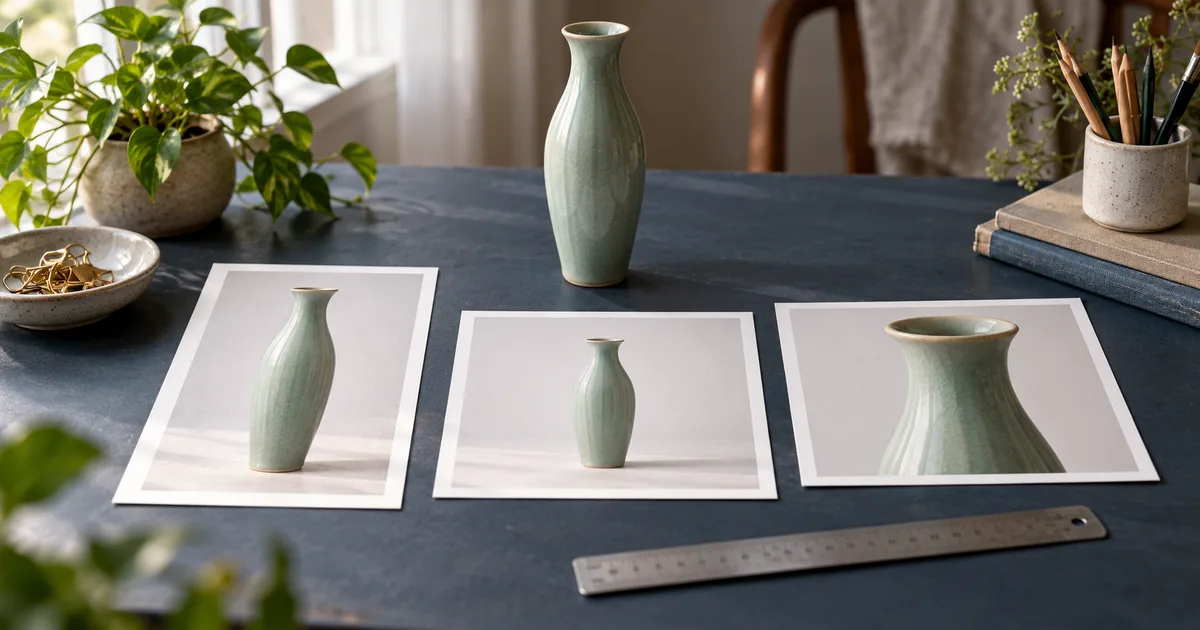

For square Shopify product images, 2048 × 2048 pixels is a useful starting size. It is not a requirement that every product photograph be square. Choose a consistent ratio for comparable products, keep enough source detail for the intended view, and check how your actual theme displays the image on product pages and collection cards.
The common mistake is solving the wrong problem. A clipped vase needs a different crop or more surrounding space. A blurry label needs a better source or delivery rendition. Making both files larger does not automatically fix either one. This guide separates the decisions and includes a worked fit-versus-fill example.
Download the product image delivery log
Start with the current product-image limits
Checked October 25, 2026: Shopify's product media documentation permits product and collection images up to 5000 × 5000 pixels, or 25 megapixels, with a file size smaller than 20 MB. It recommends 2048 × 2048 for square product photos and consistent ratios for featured images. Those limits describe acceptable uploads, not a guarantee of sharpness, zoom behavior or speed.
| Decision | Starting point | What still needs checking |
|---|---|---|
| Square working export | 2048 × 2048 pixels | Source detail and actual display size |
| Product upload limits | Up to 5000 × 5000 or 25 MP; smaller than 20 MB | Current product-media requirements |
| Featured image ratio | Keep comparable products consistent | Theme card and gallery behavior |
| Portrait example | 2048 × 2560 pixels, a 4:5 ratio | Your chosen layout; this is an example, not a Shopify mandate |
Keep product images separate from banner planning. A wide homepage banner, a collection illustration and an individual product's featured photograph serve different layouts. Copying a banner recommendation into your product workflow can create unnecessary cropping.
Separate pixels, ratio and apparent product size
Pixel dimensions describe the file's width and height. Aspect ratio describes its shape. A 1200 × 1600 file and a 2400 × 3200 file are both 3:4 portraits, but the second contains four times as many pixels. Neither fact tells you how much of the frame the product occupies.
Two square files can look inconsistent if one contains a small bottle with broad margins and the other is filled edge to edge by a jar. Increasing both to the same pixel dimensions keeps that difference. You need a framing decision as well as an export size.
For one product family, record a consistent baseline, approximate subject scale and surrounding space. Let unusual shapes remain recognizable. A long necklace and a ring should not be forced to occupy identical dimensions if that makes the comparison misleading. The catalog consistency workflow helps extend a chosen treatment across multiple SKUs.
In the delivery log, keep “file dimensions” and “display observation” in separate columns. One answers whether the export matches your plan; the other answers whether the customer can see the product clearly.
Use fit or fill deliberately: a tall-vase example
Imagine a 1200 × 1600 portrait source containing a tall vase. Its top is at y=100 and its base at y=1500, leaving 100 pixels above and below. You need to place that source inside a 1200 × 1200 square. There are two different operations you could choose.
Fit the complete source: scale the portrait to 900 × 1200, then center it on the square canvas. That leaves 150 pixels on each side. The vase remains complete, with its top at y=75 and its base at y=1125. The product is smaller in the square, but none of the original picture is discarded.
Fill the square: retain the source width of 1200 and crop the height from 1600 to 1200. A centered crop removes 200 pixels at the top and bottom. The retained source range is y=200 to y=1400, so this particular vase loses both its rim and base. A larger export of that crop would still be missing those parts.
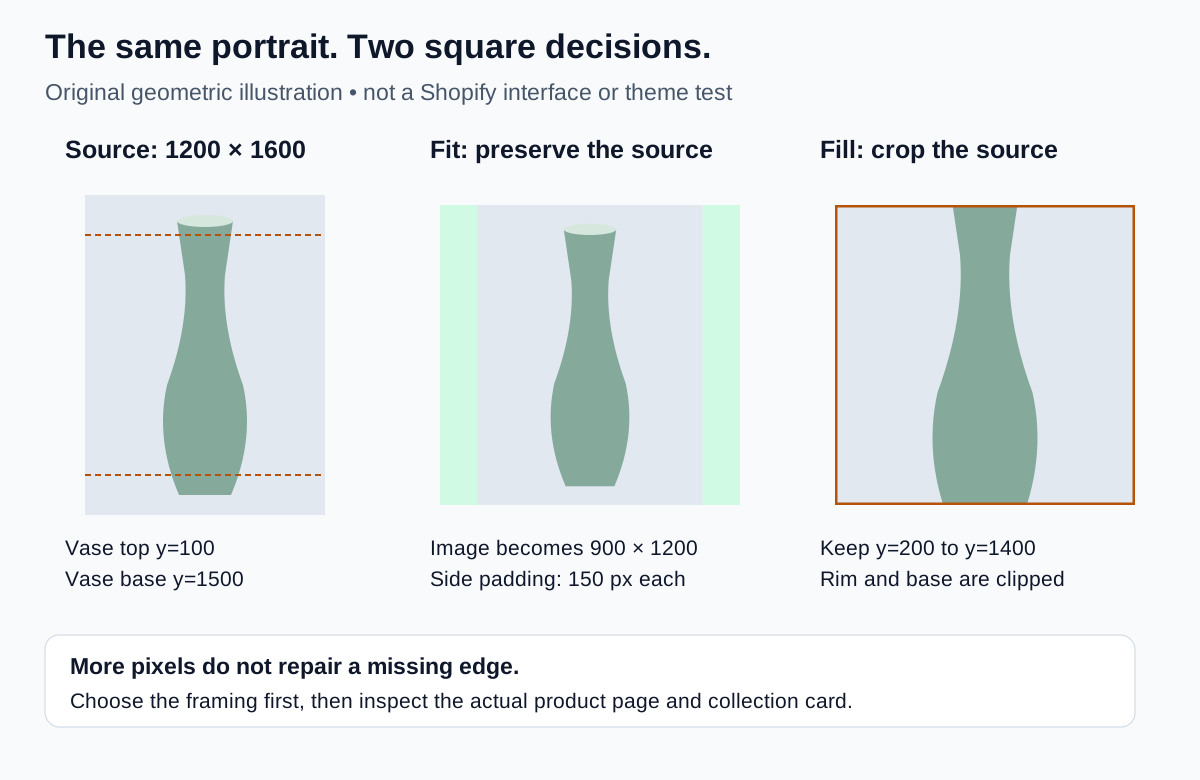
The example uses simple dimensions so you can reproduce the calculation. It does not recommend uploading a small source for every store. Apply the same reasoning to your actual master. If fitting makes the product too small, return to capture or revise the page's ratio instead of stretching the object wider.
For this vase, padding is the safer square-gallery choice because the rim and base define the product. A portrait product-page image may also work well if the theme supports your intended presentation. A close-up that intentionally shows only the glaze belongs in a separate detail slot.
Check the theme before changing every file
Find a representative product in a theme preview and inspect its full gallery, its collection card and any related-product card. The same source may appear in several containers. Write down where the problem occurs rather than assuming the original upload is wrong everywhere.
Look for the image-ratio, crop or fit settings available in that section. Labels differ between themes and versions, so use your theme's documentation instead of looking for a universal switch. Make one change in a preview, compare it with the original state, and record the effect before applying the change across the catalog.
Shopify documents focal points for supported themes and advises checking compatibility for third-party themes. Its image-upload guidance also explains automatic storefront optimization. A focal point can guide the area kept in view; it does not create extra room around a tall product. Keep both ends visible in the actual card.
If a product looks complete on its page but clipped in the collection, inspect the collection section first. If every view clips the same edge, inspect the exported source. If the source has already lost the vase base, no theme setting can restore that missing evidence.
Prepare a clean export without unnecessary compression
Keep an editable master and export a separate copy for upload. Do not overwrite the only full-resolution photograph while experimenting with crops. Use a filename that identifies the SKU, view and revision, such as VASE07-celadon-front-v2.jpg.
Shopify lists PNG and JPEG among its recommended product formats and accepts other formats, including WebP. Its imagery service selects a suitable delivery format for the visitor. Choose an accepted upload format that preserves the detail your product needs; a transparent cutout and a textured photograph may deserve different working files.
Shopify's image-upload guidance says manual compression is not required before upload and recommends providing the best-quality images available. Do not repeatedly compress a master to satisfy an arbitrary “under 100 KB” rule. Keep within the relevant upload limits, then inspect what the storefront actually delivers. A damaged source cannot become detailed merely because a CDN serves it efficiently.
When resizing, preserve proportions. Shopify's media editor instructions distinguish cropping from resizing and warn that changing dimensions with the aspect ratio unlocked can distort an image. Use a crop or added canvas space to change shape; do not squeeze a vase into a square.
Review descriptive alt text for the visible image. For our example, “Celadon vase with a flared rim, front view” identifies the object and view. It does not need a string of keywords, a price or a claim about handmade construction that the image cannot establish.
Diagnose the visible problem before editing again
| What you see | Check first | Useful next action |
|---|---|---|
| Rim or hem disappears only on a card | That section's crop and ratio | Adjust the presentation or prepare a padded export |
| Product is complete but looks very small | Blank space already inside the file | Reframe deliberately, preserving the whole item |
| Source itself looks soft | Focus, motion and original resolution | Use a sharper source or reshoot |
| Source is sharp; storefront rendition is soft | Rendered size and image being delivered | Review theme image sizing with the theme developer |
| Only one color option has the wrong photo | Variant-to-image association | Correct the mapping before altering the picture |
For a simple resolution check, an image displayed 600 CSS pixels wide on a screen with a 2× pixel ratio can use roughly 1200 source pixels across for that view. That arithmetic is a planning example, not a promise about your theme's requested rendition or zoom. Check the actual display and leave room for the detail views you offer.
Upscaling may help presentation, but invented texture or lettering is not recovered evidence. If a product label is unreadable in the source, a fresh detail photograph is usually more useful than making the same blurry file larger. For fabric patterns that change during resizing, consult the moire troubleshooting guide.
Run a small delivery review before the whole catalog
Test a tall product, a wide product and one item with fine detail. Use a narrow mobile view and a desktop view, then open the actual site on a phone when possible. Record the theme version, section, selected variant, source filename and observation. The downloadable log includes fictional crop outcomes and blank review rows; it is not a record of a tested Shopify store.
Check the product gallery, collection card and any available enlarged view. Inspect fine text, edges, texture and empty margins. If a template change fixes the tall vase but clips the wide tray, the catalog needs a more considered ratio or framing rule.
Once the test set works, apply the chosen export treatment to comparable products and sample the uploaded results again. Retain the original files so a later theme change does not force you to start from compressed storefront copies.
How QuestStudio helps
Image Lab can help explore a supporting product scene before the final crop. Use an approved reference with a model that accepts image input, review the available controls and credit requirement, and compare the result with the original. Check shape, labels and material before judging the scene's style.
Finish exact pixel dimensions and padding in your image editor, then test the export in Shopify. This workflow does not imply a direct Shopify integration or automatic theme-size matching. If the product must remain pixel-identical, the background replacement workflow explains the role of a preserved product cutout and a separate scene.
Frequently asked questions
Do all Shopify product images have to be square?
No. Choose a consistent ratio that works for your products and theme. Inspect the collection and product-page layouts before changing the full catalog.
Why does a larger image still get cropped?
More pixels do not change the image's shape or the container's crop behavior. Adjust the framing, add suitable canvas space or review the theme section.
Should I stretch a portrait photo into a square?
No. Stretching changes the product's proportions. Fit the full source on a square canvas or choose a deliberate crop that keeps the necessary details.
Does an accepted upload guarantee a sharp enlarged view?
No. The source must contain real detail, and the theme must deliver a suitable rendition. Check the available enlarged view instead of treating upload acceptance as a quality test.
Can a generated image replace missing product detail?
It can suggest a concept, but it cannot verify an unreadable label or unseen construction. Keep factual product photographs for details customers use to judge the item.
Approve the displayed image, not just the file
A useful export preserves the product and works in its intended layout. Start with a sound master, choose fit or fill deliberately, and record what the storefront actually shows. Once those decisions work for a small test set, the rest of the catalog has a clear standard to follow.
Hero: AI-generated editorial illustration. Diagram and worksheet examples are original teaching exercises, not a real product shoot, Shopify theme test or measured model result. Prepared October 25, 2026.