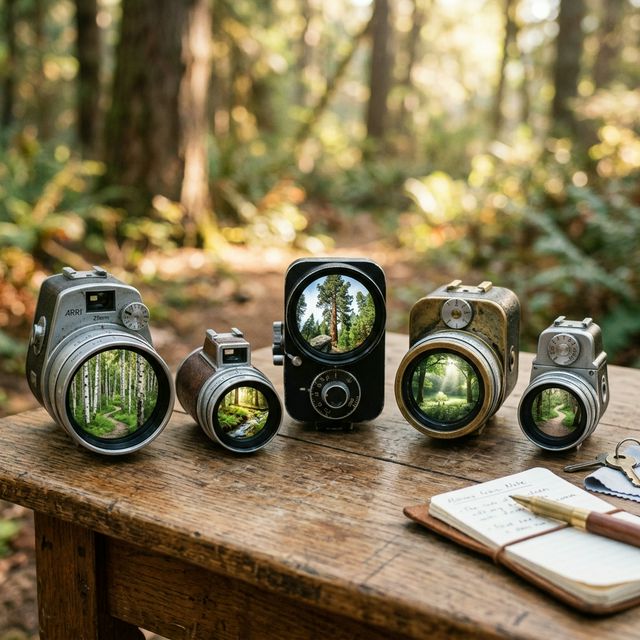

A good shot type tells the model how the viewer should experience the scene. Instead of saying make it cinematic, you define the camera language directly. That approach lines up with current guidance from Runway and Google, both of which emphasize clear camera movement, shot direction, and temporal progression in video prompts.
This prompt pack gives you a practical set of copy-ready shot types you can use for image-to-video clips, especially when working from a strong source image.
Why shot types matter in image-to-video prompting
In image-to-video, the image already carries much of the composition, subject, lighting, and style. Your prompt usually works best when it focuses on what changes over time, especially motion and camera behavior. Runway's current image-to-video guidance states this very directly, and Google's Veo prompt guide also highlights specific camera instructions like aerial, bird's-eye, POV, and extreme close-up examples.
That means shot types help you control:
- how the camera moves
- how dramatic or subtle the clip feels
- where the viewer's attention goes
- whether the result feels polished or random
The core prompt formula for shot types
Use this simple structure:
Example:
This works because the shot type acts like a camera instruction inside the prompt.
How to use this prompt pack
Each shot type below includes:
- what it is best for
- what it tends to make the viewer feel
- a copy-ready prompt
- a few fast variations
Keep your prompts focused. Most current prompt guides work best with clear, direct phrasing rather than stuffed keyword lists. Runway's Gen-4 prompting guidance explicitly describes camera motion in terms like locked, handheld, dolly, pan, focus shifts, and more, while Veo's examples show that direct shot descriptions are useful prompt anchors.
1. Drone shot
A drone shot creates height, scale, and movement through space. It works well for landscapes, cities, travel scenes, real estate, and cinematic intros.
Best for:
- large environments
- epic reveals
- scenic establishing shots
- travel-style visuals
Prompt:
Variations:
- aerial drone shot rising upward over the scene
- drone shot sweeping across the coastline
- high drone reveal over a mountain valley
- bird's-eye drift above a busy city street
Google's current Veo prompt guide includes aerial drone and bird's-eye examples as named camera approaches, which makes this a solid pattern to use across modern video models.
2. Dolly shot
A dolly shot moves the camera smoothly toward, away from, or across the subject. It feels polished and intentional.
Best for:
- product shots
- character intros
- slow cinematic movement
- ad-style scenes
Prompt:
Variations:
- slow dolly in toward the subject
- smooth dolly left across the scene
- dolly back to reveal the full environment
- low dolly move past the foreground
Runway's current prompting material explicitly includes dolly as a camera motion concept, which is why it translates well into prompt language for cinematic control.
3. Handheld shot
A handheld shot adds natural shake and human presence. It often feels more documentary, raw, immediate, or personal.
Best for:
- street scenes
- realism
- documentary style
- action or tension
Prompt:
Variations:
- handheld medium shot following the subject
- handheld close-up with natural micro-shake
- handheld over-the-shoulder shot
- loose handheld tracking shot through the space
Runway's current text-to-video prompting examples explicitly reference handheld documentary style and natural camera shake, which supports using handheld language as a direct prompt tool.
4. Wide shot
A wide shot gives breathing room and context. It shows the subject in relation to the environment and works especially well for storytelling and cinematic setup.
Best for:
- establishing a scene
- showing scale
- environmental storytelling
- fantasy, sci-fi, and travel shots
Prompt:
Variations:
- wide establishing shot of the environment
- wide static shot with subtle atmosphere
- wide slow push in across the landscape
- wide shot with the subject centered in frame
Google's Veo guide uses wide-to-close framing examples and bird's-eye environment shots to demonstrate how camera framing shapes the result, which makes wide-shot prompting especially useful for setup and scale.
5. Macro shot
A macro shot magnifies tiny details and creates intimacy. It is great for products, food, beauty, insects, textures, and cinematic inserts.
Best for:
- products
- food
- beauty details
- texture-rich shots
- dramatic inserts
Prompt:
Variations:
- macro close-up of fine texture
- extreme close-up of the subject detail
- macro push in on a reflective surface
- macro shot with shallow depth of field
Google's Veo guide includes an extreme close-up example, and Runway's prompting examples also use macro language in camera movement scenarios, which confirms this is a strong prompt pattern for detailed shots.
6. Rack focus shot
Rack focus shifts attention from one subject plane to another. It adds depth and a cinematic transition inside the same frame.
Best for:
- storytelling
- product reveals
- portrait scenes
- layered compositions
Prompt:
Variations:
- rack focus from foreground object to subject
- focus shifts from the eyes to the background
- shallow depth of field with slow focus pull
- start blurred, then pull focus onto the main detail
Runway's current Gen-4 prompting guide specifically notes shifts in focus as part of camera motion language, which makes rack focus a valid and useful shot instruction in prompt design.
Copy-ready shot prompts you can use now
Here are quick prompts you can paste and adapt:
Drone
Dolly
Handheld
Wide
Macro
Rack focus
How to get better results from shot-type prompts
Match the shot type to the source image
If the image is already a close portrait, a huge aerial drone move may feel unnatural. Match your shot type to what the image can support.
Keep the motion realistic
One strong camera instruction usually works better than three conflicting ones. Current vendor guidance consistently favors clear, direct prompts over cluttered ones.
Add environment motion carefully
Fog, dust, rain, steam, drifting leaves, and reflections can help a shot feel alive without overpowering the main subject.
Think like a director
Do not write random keywords. Write the shot as if you are describing one moment from a real scene.
Common mistakes to avoid
| Mistake | Why it breaks | Fix |
|---|---|---|
| Mixing too many camera moves | The model cannot prioritize | Pick one primary shot type per generation |
| Describing the whole image again | Redundant with image-to-video | Emphasize motion, camera, and time |
| Using cinematic alone | Too vague to steer the camera | Name the shot: dolly, wide, handheld, macro, rack focus |
| Overcomplicating rack focus | Confusing focus cues | Start simple: focus on A, then shift to B |
A mini shot-type checklist
Before you generate, ask:
That quick check prevents a lot of messy generations.
How QuestStudio helps
QuestStudio is useful here because shot-type prompting works best when you can test variations without losing your structure.
You can build your source image in the AI image generator or refine it with image to image AI, then move into image to video AI or the broader AI video generator workflow. Once you start iterating, Prompt Lab and the prompt library inside the app make it easier to save shot formulas, compare outputs across models, and reuse the prompt styles that actually work.
That is especially helpful for a shot pack like this because the same base idea can be tested across wide, dolly, handheld, and macro versions without rewriting your whole workflow every time.
Related guides
FAQ
What is the best shot type for image-to-video prompts?
Should I include camera terms in an image-to-video prompt?
What does rack focus mean in an AI video prompt?
Is handheld or dolly better for realistic AI video?
Can I use these shot types across different video models?
Final thoughts
A good shot-type prompt pack gives you more than inspiration. It gives you a repeatable system.
Instead of guessing, you can choose the shot type that matches the scene, write one clear prompt, and generate with more control. That usually leads to better image-to-video results than piling on vague cinematic keywords.
If you want a cleaner way to test, compare, and save those prompts, try QuestStudio and build your own reusable shot library as you go.