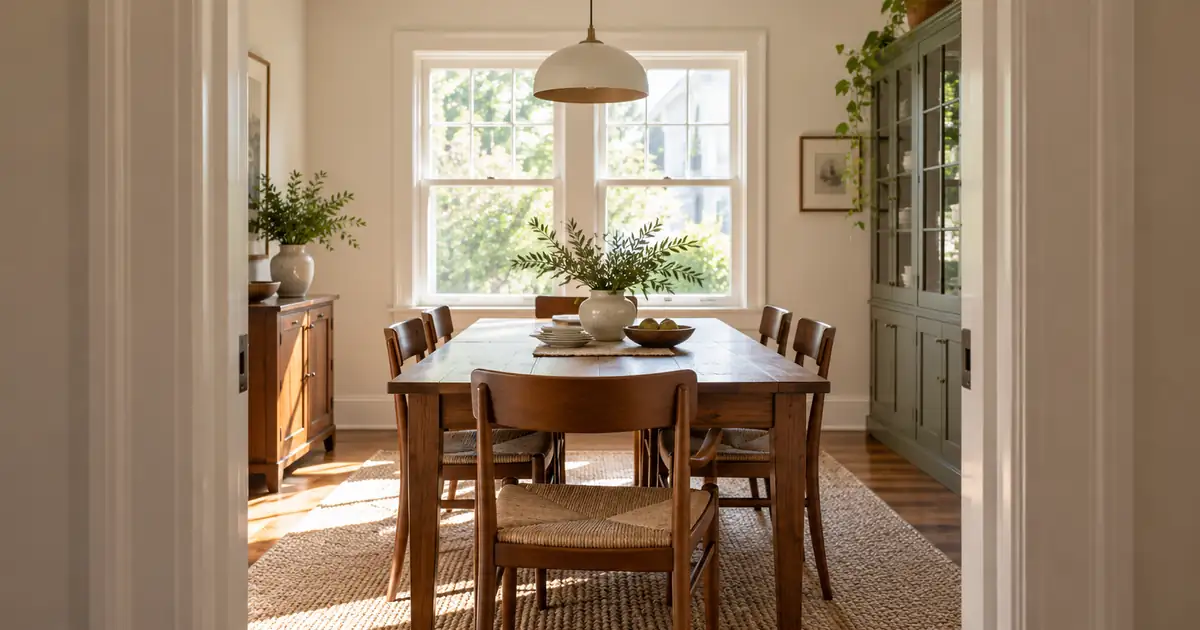

A doorway leaning inward does not necessarily mean an interior photo needs AI regeneration. It may need a small rotation, a perspective adjustment or a lens correction. A genuinely bent cabinet edge is a different problem. Identify the geometry error before asking an editor to change the room.
To straighten an interior photo, first distinguish camera roll from converging verticals and curved lines. Correct the captured perspective with an appropriate transform, inspect the crop, and compare permanent features with the original. If an AI edit has invented a doorway or warped a wall, return to the reliable source rather than treating the change as ordinary lens distortion.
Separate four problems that look similar
Camera roll tilts the whole scene. A level shelf and the floor may both slope in the same direction. Rotating the photograph can correct that orientation, although the rotation will usually require a crop.
Perspective convergence happens when the camera points upward or downward. Straight vertical edges can lean toward each other while remaining straight. A perspective tool can redistribute the image so those edges appear more upright.
Lens distortion can bow a line that should be straight. Applying a suitable lens correction is different from moving the corners of the whole image. Finally, generative geometry errors may bend just one cabinet, interrupt a doorframe or invent an extra window. A global transform cannot reliably restore missing or fabricated architecture.
| Visible symptom | First check | Suitable direction |
|---|---|---|
| Entire room tilts one way | Camera roll | Rotate using a trustworthy level reference |
| Door jambs converge but remain straight | Camera tilt | Perspective adjustment |
| Long edges visibly bow | Lens distortion | Appropriate lens correction |
| One edge bends or changes thickness locally | Editing or generation error | Compare with the original and repair or restart |
| Furniture looks stretched after correction | Excessive transform | Reduce correction or choose another source |
Do not assume every interior must look perfectly symmetrical. A photograph can show a room from an angle while keeping its verticals reasonable. Forcing every visible edge into a rectangular grid can flatten the space and distort furniture.
Choose architectural anchors before editing
Select two or three edges that you know are straight and vertical in the real room. Door jambs, wall corners and window frames often help. Avoid a leaning lamp, an angled chair back or a decorative object whose real shape is uncertain.
Record the permanent features near those anchors. For a kitchen, count the upper cabinet doors, note the window position and locate the counter edge. These details give you a way to detect whether an AI-assisted correction changed the room while making its lines look cleaner.
Use the original photograph as the reference. If the image has already passed through several generative edits, locate the earliest trustworthy capture. A polished intermediate version may already contain the structural error you are trying to preserve.
The multiple-angle virtual staging guide explains how shared architectural anchors help across several views. Here the task is narrower: make one photograph easier to read without changing the property it depicts.
Correct the source in a controlled order
Work on a copy. Apply the lens correction appropriate to the source when one is available, then address obvious roll and perspective. Recheck after each operation because the controls can interact. Avoid combining strong rotation, stretching and generative filling in one unexplained pass.
In a photo editor with guided perspective controls, place guides along the selected architectural edges. Adobe's Lightroom perspective tutorial demonstrates Upright and Guided Upright for this purpose. Use the controls available in your installed editor rather than assuming every AI image tool provides the same transform.
Make a moderate correction and compare it with the original. Inspect the middle of the frame as well as the outer edges. A door may become upright while a chair near the corner becomes implausibly wide. The goal is a believable photograph, not a numerical contest to make every line perfectly parallel.
If the required correction is extreme, consider another capture. A slightly higher camera position, a more level phone or a less aggressive lens angle may give you a better source than a severely stretched correction.
Plan the crop before filling the empty corners
Perspective adjustment can expose empty wedges around the transformed image. Before filling them, draw the intended delivery crop and see which areas actually matter. A simple crop may remove the empty regions without requiring invented content.
For a fictional room photograph measuring 4,000 by 3,000 pixels, suppose the usable corrected crop is 3,600 by 2,700. The crop retains 9.72 million of the original 12 million pixels, or 81 percent by area. That arithmetic describes retained image area, not preserved optical detail or a guarantee of print quality.
Check the destination's actual needs. If the crop removes part of a doorway that explains how the room connects to the hall, the composition may no longer do its job even though the remaining resolution is ample. A different source angle could be the better answer.
Generative expansion can invent what lies beyond the captured edge. That may be acceptable for an explicitly fictional concept illustration, but it should not silently become evidence of a real property's layout. Keep the original visible when reviewing any expanded area.
Use a room-specific acceptance check
Imagine correcting a dining-room photo with two windows, one doorway and a built-in cabinet. Your acceptance check should name those features rather than just say “looks straight.”
- Both original windows remain in the same walls.
- The doorway retains its original width relationship and visible trim.
- The cabinet has the same number of doors and drawers.
- Floorboards continue without an abrupt bend or repeated patch.
- The dining chair retains a believable seat and back.
- The final crop preserves the intended passage through the room.
Look at the result at normal size first. Then inspect the transformed edges closely. Alternate between source and corrected versions without changing the viewing scale more than necessary. This makes a moved window easier to notice than studying the final image alone.
Use the interior geometry worksheet to connect each anchor with its source location, correction and final decision. Keep a note if a feature is intentionally cropped rather than reconstructed.
Keep an AI concept separate from a property photograph
A real interior photograph answers what the room currently looks like. A design concept explores what it might look like. Straight lines do not turn a concept into a measured plan, and attractive furniture does not establish that the proposed layout fits.
If the goal is a design study, correct the source geometry first, then explore finishes or furnishings while keeping architectural anchors visible. Describe the allowed changes narrowly. Do not ask for “a larger, cleaner room” if the walls and openings need to stay dependable.
This is an illustrative brief. Review the output; the instruction does not guarantee structural preservation. The floor-plan rendering guide covers when a measured model is needed instead of a generated concept.
How QuestStudio helps
Use Image Lab for a bounded concept after the source photograph has been corrected in an editor with the necessary perspective controls. Keep the real photo beside the generated version and reject any moved opening or altered permanent feature.
For a photo that also has mixed lighting, handle the geometry and the light as separate decisions. The photo lighting correction guide helps isolate the second task. One reviewed change at a time makes it easier to know why an image still represents the room.
Frequently asked questions
Can rotation fix converging vertical lines?
Rotation can correct an overall tilt. Converging verticals usually require a perspective adjustment, because the lines lean toward one another rather than simply sharing one angle.
Should I use AI to fill every empty corner after straightening?
First test the required crop. Filling missing areas can invent architecture, so keep any generated extension separate from factual property evidence.
Why does furniture look stretched after correction?
A strong transform redistributes the whole image. Reduce the correction, inspect the source angle or choose a better photograph instead of accepting distorted furniture.
Does Image Lab replace a guided perspective editor?
This workflow does not assume that it does. Use an editor with explicit geometric controls for correction, then use Image Lab for a separately reviewed creative concept.
Keep the room recognizable
Stop when the photograph reads naturally, the important architecture agrees with the source and the crop still explains the space. A restrained correction often communicates more clearly than a perfectly squared image of a subtly different room.
Explore an interior concept in Image Lab
Hero image: AI-generated editorial illustration. Examples are original planning exercises, not measured model tests.