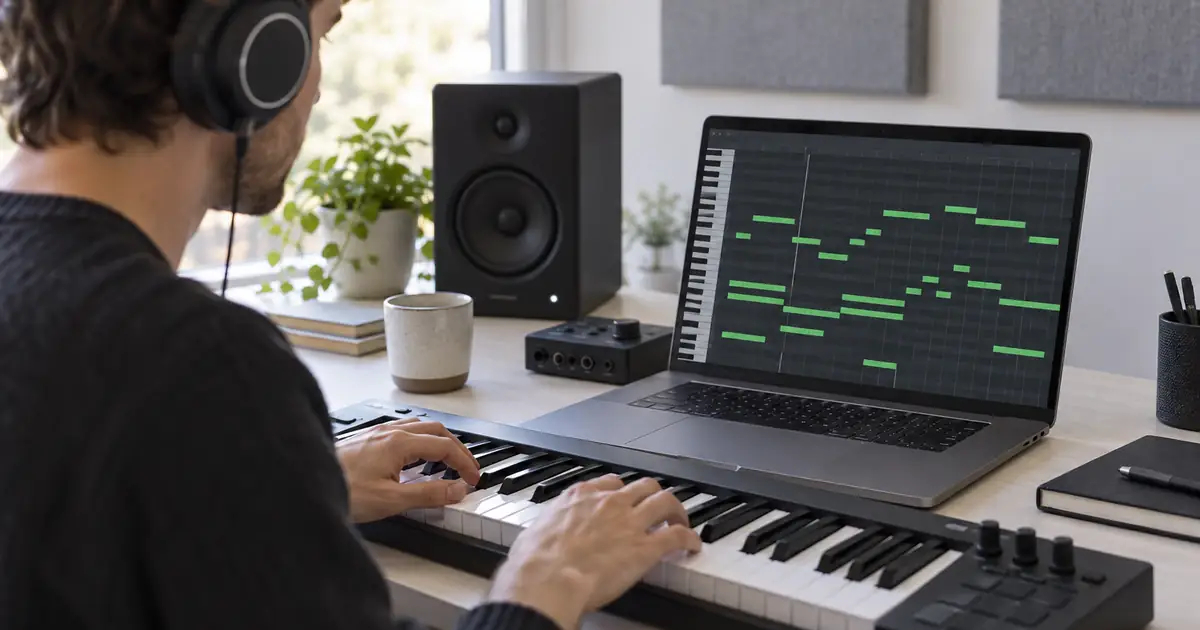

You like a melody in a Suno song, but you want to play it with your own instrument and change a few notes. An audio stem separates a musical part. MIDI gives you editable note instructions. Moving from one to the other is useful, but the resulting notes still need a musical inspection.
Create a sparse melody idea · Download the MIDI cleanup worksheet
Official Suno documentation checked September 14, 2026, including export pages updated September 9. The timing example is an original calculation, not a transcription benchmark. The hero is AI-generated and does not show Suno's interface.
Understand what the export contains
A WAV file contains audio. A MIDI file describes musical events such as which note starts, when it starts, and how long it lasts. An instrument turns those instructions into sound. Opening a MIDI file without an assigned instrument can therefore produce silence even when the file contains notes.
Suno's MIDI in Studio guide explains MIDI tracks, instruments, and piano-roll editing for pitch, timing, duration, and velocity. Those controls let you revise a part rather than merely turn its recorded audio up or down.
Do not expect MIDI to reproduce the original singer's timbre, a guitar's complete articulation, or a reverb tail. Even a good note transcription needs an appropriate instrument and performance choices. The question is whether the export gives you a useful editable part, not whether a default piano sounds identical to the source recording.
Check the current export path and plan
Suno's Exporting from Studio documentation describes extracting stems, selecting a stem, and using Get MIDI. That is different from downloading the entire song as audio. Start with the stem containing the part you actually want to edit.
The download-format guide updated September 9, 2026 lists MIDI for songs created in Studio and associates Studio with Premier. It lists other plan and device distinctions for audio formats. Check your current project and export controls; older tutorials may describe different access or interface arrangements.
Preview the selected stem before requesting MIDI. A label such as “other” may contain several instruments. A busy mixture is a less straightforward transcription target than a clearly isolated melody. If you cannot hear the part distinctly in the stem, expect more interpretation and cleanup afterward.
Choose a part with a clear musical job
For your first attempt, choose a short lead melody, bass phrase, or simple instrumental figure. Decide whether you need every ornament or only the underlying notes. A supporting bass line may work after modest cleanup; a richly strummed guitar part can require decisions about which detected pitches belong to the intended chord.
Save the source audio, the chosen stem, and the first MIDI export together. Name the part and section, such as cueA-bars01-08-lead. Keep the original export unchanged and make repairs in a duplicate track or project version.
Write the musical objective before editing: “Make this eight-bar melody playable with a soft synth” is specific. “Make the MIDI perfect” has no practical stopping point, especially when the original performance includes slides, expressive timing, or layered instruments.
Align the phrase before moving individual notes
Use an original planning example: an eight-bar cue in 4/4 at 100 beats per minute. There are 32 quarter-note beats. Each lasts 60 ÷ 100 = 0.6 seconds, so eight bars span 19.2 seconds. This calculation describes a steady grid; it does not establish that an arbitrary generated recording follows it exactly.
Import the audio reference and MIDI into the same DAW project. Assign a simple instrument to the MIDI track. Set a sensible starting tempo, then compare the first clear note and a note near the end. Avoid correcting every note before you understand the overall alignment.
| Observation | Possible explanation | First check |
|---|---|---|
| Every note arrives equally late | Start offset or leading silence | Move the whole phrase into alignment |
| The first note matches but later notes drift | Tempo or timing-map mismatch | Compare the grid with several reference beats |
| Only a few notes feel late | Local detection or expressive timing | Inspect those notes in musical context |
| The imported file is silent | No instrument or an inactive track | Check instrument assignment, mute, and routing |
Do not assume a tempo label is exact throughout a performance. If the audio deliberately changes tempo, one constant grid may not align every section. Decide whether you want to preserve that performance timing or adapt the idea to a steady arrangement.
Inspect pitch before choosing a fancy sound
Use a plain, easy-to-hear instrument while checking notes. A large evolving pad can hide extra pitches and make a wrong note seem like part of the effect. Solo a short phrase, then compare it with the stem.
Watch for octave errors. A note one octave too high differs by twelve semitones, which can make the contour feel recognizable while placing it in the wrong register. Also inspect very short extra notes around strong attacks; they may be unwanted detections rather than intentional musical ornaments.
For a melody intended to play one note at a time, look closely at overlapping note blocks. Some overlap may represent a natural legato phrase, while a second unrelated pitch may not belong. Do not delete every overlap automatically. Let the reference and the intended instrument guide the decision.
Repair note length and expression deliberately
A note's end matters as much as its start. A short extracted note can sound abruptly detached; a long one can clash with the next harmony. Listen to the phrase with your chosen instrument and adjust endings according to the musical result you want.
Different instruments respond differently to the same MIDI. A piano note decays after its attack, while a sustained synth may continue at a strong level until note-off. Pedal behavior and overlapping notes can also change what you hear. Separate those instrument decisions from whether the transcription found the right pitch.
Use velocity for emphasis where the instrument responds to it, but avoid flattening every note to the same value immediately. Likewise, quantization can tighten timing but may remove useful phrasing. Apply it selectively and compare the edited version with the untouched export before committing.
Know when manual transcription is faster
If a four-note motif is obvious by ear but the export contains dozens of fragments, entering the four notes yourself may be the shortest route. If a dense chord part is ambiguous, simplify it into a musically useful voicing rather than preserving every detected block.
Estimate the repair task after inspecting a short section. Are you correcting a few octave mistakes, or rebuilding almost everything? That distinction helps you choose between another stem, another export, manual transcription, or keeping the original audio.
There is no need to convert every part to MIDI. Keep expressive audio where it works and replace only the instrument you need to control. A hybrid arrangement can preserve the original character while giving you editable bass, melody, or accompaniment where the project benefits from it.
Finish with a playable handoff
Save the cleaned MIDI, the DAW project, and an audio bounce of the chosen instrument. The bounce tells a collaborator what you intended even if they do not own the same sound library. Include the tempo assumption, any intentional offset, and the section's place in the song.
For a new idea, QuestStudio Music Lab can generate a sparse audio sketch that is easier to hear and evaluate. Suno's own export workflow and your DAW handle the MIDI steps described here. Music Lab does not imply a native Suno MIDI export control.
Frequently asked questions
Is a Suno stem already MIDI?
No. A stem is separated audio. MIDI contains note instructions and requires an instrument to produce sound. Suno documents a separate Get MIDI operation for stems in supported Studio workflows.
Why is my MIDI file silent?
Check that it contains notes and that the receiving track has an active instrument, correct routing, and no mute setting. A MIDI file does not carry the original recorded sound.
Should I quantize all the notes immediately?
No. First align the phrase and inspect its timing. Quantization can help a steady arrangement but can also remove expressive phrasing. Compare a small edit with the untouched export.
Does MIDI export mean the notes are an exact transcription?
No. Review pitch, register, extra notes, duration, and timing against the source. Treat the export as an editable starting point and use manual transcription when that is clearer or faster.
For a focused next step, read AIVA MIDI Import: Arrange Your Melody or Use It as an Influence.