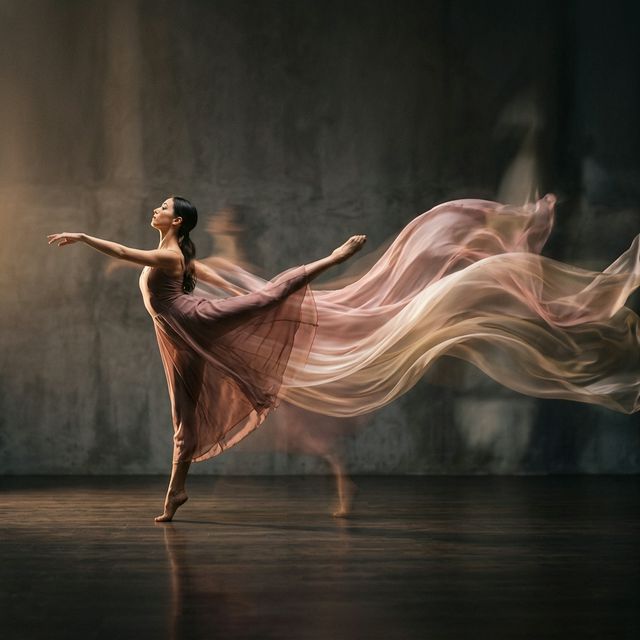

It feels simple on the surface. Pick an image, add a motion idea, click generate. But the quality of the result depends on a few important choices, and that is where most people get stuck.
This guide breaks down what image-to-video AI actually means, how it differs from text-to-video, why faces and hands still go weird sometimes, and the fastest workflow for getting clips you actually want to keep. Broadly, current tools treat image-to-video as an anchored workflow and text-to-video as a blank-canvas workflow, which is why they tend to shine in different situations.
What image-to-video AI means
Image-to-video AI starts with a visual reference. That reference might be a product photo, a portrait, an illustration, a frame from a concept shoot, or an AI-generated image. The model uses that starting image as the visual anchor, then generates motion over a short sequence.
In plain terms, image-to-video is not inventing the whole scene from scratch. It is trying to animate what is already there.
That makes it especially useful when you care about:
- keeping a product recognizable
- preserving a specific art style
- animating a character you already like
- turning a finished still into a short social clip
- making quick motion tests before editing a bigger piece
Text-to-video is different. With text-to-video, you describe the scene and the model invents the visuals and motion together. That gives you more creative freedom, but usually less control over exact identity, layout, and details.
Image-to-video vs text-to-video
A simple way to think about it:
- Image-to-video = start with a visual you want to preserve
- Text-to-video = start with an idea you want to explore
Use image-to-video when:
- you already have a strong image
- brand consistency matters
- product shape, colors, or styling need to stay close to the source
- you want faster iteration from a fixed visual starting point
Use text-to-video when:
- you are brainstorming from zero
- you want the model to invent the setting
- you do not have a source image yet
- concept exploration matters more than strict visual consistency
For many creators, the best workflow is not choosing one forever. It is using text-to-video for ideation, then switching to image-to-video once you have a frame, character, or composition worth refining. That split shows up again and again in current comparison and workflow guides.
Why image-to-video often feels easier
Image-to-video usually feels easier for beginners because the image does some of the hard work for you.
The model does not need to guess:
- what the subject looks like
- what color palette to use
- how the frame is composed
- what overall style the scene should have
That visual anchor reduces randomness. It also makes prompting simpler. Instead of describing the whole world, you mainly describe the motion.
For example, this is a tough text-to-video prompt:
If you already have the exact image, your image-to-video prompt can be much simpler:
Same goal. Much less guesswork.
Why motion consistency is still hard
This is the part most landing pages gloss over.
Image-to-video AI can look amazing for one second and then suddenly break. A face changes shape. Fingers merge. Earrings disappear. A wall texture flickers. The background seems to rethink itself halfway through the shot.
That problem is usually called temporal consistency. It means keeping the same subject, details, textures, and scene logic stable across frames. It remains one of the hardest problems in AI video generation, especially as clips get longer or motion gets more aggressive.
Why faces break
Faces are hard because people are extremely good at noticing tiny mistakes. A slight eye shift, lip shape change, or nose-width drift can make a clip feel off immediately.
Faces also contain a lot of small moving parts: eyes, eyelids, mouth shapes, teeth, cheeks, hairline, skin texture. The model has to preserve identity while also creating believable motion. Even a subtle smile or head turn can cause drift if the model loses the anchor.
Why hands break
Hands are difficult for a similar reason, but worse. They change shape constantly in motion. Fingers overlap, rotate, curl, and disappear behind objects. A model has to predict anatomy, perspective, and occlusion from frame to frame. That is why hand motion often looks fine in one frame and strange in the next.
Why backgrounds break
Backgrounds fail when the model treats them as flexible texture rather than stable structure. A shelf item may shift position. A lamp may bend. Brick patterns may shimmer. Trees may move in ways that do not match the rest of the scene.
This usually gets worse when:
- the background is cluttered
- the camera movement is too strong
- the shot is too long
- the prompt asks for too many simultaneous changes
Why scene logic breaks
Even when the clip looks sharp, logic can fail. Hair moves in the wrong direction. Shadows change too much. A person turns, but clothing folds do not match. These are not random mistakes. They happen because the model is pattern-matching realistic motion, not simulating the world the way a physics engine would.
The practical lesson is simple: ask for less motion, and you often get a better result.
What controls quality most
A lot of people think the model alone decides quality. It does not. The result is heavily shaped by your inputs and settings.
1. Source image quality
Your source image matters more than almost anything else.
Strong source images usually have:
- one clear subject
- readable lighting
- clean separation between subject and background
- enough detail at the face or product level
- a composition that already looks finished
Weak source images usually have:
- blurry edges
- crowded backgrounds
- tiny faces
- awkward cropping
- low resolution
- confusing poses
If the image is weak, the model has less reliable information to animate. It has to guess more, and guessing is where quality drops.
A good rule: if you would not post the still image, do not expect the video to save it.
2. Motion strength
Motion strength controls how far the model is allowed to move away from the source frame.
Low motion strength usually gives: better consistency, safer facial detail, cleaner product shots, more subtle, realistic motion.
High motion strength usually gives: more dramatic movement, more visible camera action, more risk of drift, warping, and background changes.
For portraits, product demos, and character shots, start lower than you think. Big motion is tempting, but small motion often looks more premium.
3. Camera movement
Camera prompts strongly affect whether a clip looks polished or chaotic.
Safer camera moves: slow push-in, gentle pull-back, slight pan, minor handheld feel, subtle orbit.
Riskier camera moves: fast orbit, strong dolly move, dramatic angle changes, rapid zoom, multi-direction camera movement in one short clip.
If you want a cinematic result, it is better to ask for one clean move than three fancy ones.
4. Duration
Shorter clips are usually more stable. Longer clips give the model more chances to drift.
A four or five second clip often feels cleaner than an eight, ten, or twelve second clip. That is one reason short AI video clips are so common right now. More frames means more opportunities for identity, anatomy, and background details to shift.
If a long clip matters, generate a shorter clean shot first. Then extend or build the sequence in pieces.
A simple quality checklist before you generate
Before you click generate, check these five things:
That last one matters a lot. Sometimes the best move is to improve the still before animating it. You might generate a better base image in an AI image generator, clean the composition with image to image AI, or sharpen details with an image upscaler.
Best quick workflow: generate, pick, iterate, upscale
If you want a workflow that saves time, use this one.
Step 1: Generate multiple versions quickly
Do not aim for the perfect final on the first run. Generate a few short versions first. Change only one or two things between versions: motion strength, camera direction, prompt wording, duration, model choice. This helps you learn what is actually affecting the result.
Step 2: Pick the winner fast
Do not judge only on wow factor. Judge on usability. Pick the version with the cleanest face or product detail, the most stable background, the least distracting artifacts, the most believable motion, and the strongest first second. A flashy clip with face drift is usually worse than a subtle clip that holds together.
Step 3: Iterate on the best one
Now refine the winner. Common improvements: reduce motion slightly, shorten the clip, simplify the prompt, keep the subject centered, remove extra actions, use a better reference image. This stage is where quality usually jumps.
Step 4: Upscale only after you like the motion
Do not waste time upscaling clips you are not keeping. Once the motion looks right, improve delivery quality with tools like an image upscaler for source stills or a video upscaler in your finishing workflow. The key is to lock the shot first, polish second.
Prompt tips that usually work better
For image-to-video, less is often more.
Good prompt structure: subject movement, camera movement, mood or style, one or two environmental actions.
Avoid stuffing prompts with too many simultaneous actions. If the image already shows the style, do not repeat every visual detail. Focus on motion.
Best use cases for image-to-video AI
Image-to-video AI is especially good for:
- Product marketing. Animate product stills into short ads, showcase loops, or landing page visuals.
- Character and portrait motion. Bring static portraits to life with blinks, slight turns, hair movement, or mood shots.
- Social content. Create short loops for reels, stories, teasers, and thumbnails that feel more alive than a still image.
- Concept previews. Turn keyframes, moodboards, and rough frames into motion tests before a full edit.
- Music and cover art visuals. Animate cover art, posters, and illustrated scenes into simple moving visuals, then pair them with tools like an AI music generator or AI voice generator when the project needs audio too.
How QuestStudio helps
QuestStudio is useful here because image-to-video quality is rarely about one perfect model. It is about matching the right model and settings to the shot you are trying to make.
Inside QuestStudio, you can compare outputs from multiple video models side by side, switch between text-to-video, image-to-video, and video-to-video workflows, test different durations and aspect ratios for the same concept, organize and reuse prompts in Prompt Lab, and move between image creation and video generation without rebuilding the workflow from scratch.
That matters when you are trying to answer practical questions like: Which model handles my portrait best? Which one keeps products cleaner? Does this shot need four seconds or eight? Should I fix the source image first?
A common workflow is to create or refine the still in Image Lab, save the prompt in the prompt library inside the app, then animate the best version in Video Lab. If your project depends on stable identity, a consistent character workflow can help before animation even starts. See consistent characters in image to video for that side of the process.
If your goal is exploring models and workflows in depth, the companion guide image to video AI is a natural next read.
Related guides
Common mistakes to avoid
| Mistake | Why it hurts |
|---|---|
| Starting with a weak image | A poor still usually creates a poor animation. |
| Asking for too much motion | More movement often means more drift. |
| Choosing long duration too early | Start short. Extend only after you get a stable shot. |
| Combining multiple camera moves | One clean move almost always beats a complicated move. |
| Ignoring the source image pipeline | Sometimes the right fix is not a better video prompt. It is a better base image. |
FAQ
What is the difference between image-to-video and text-to-video?
Why do AI videos make faces and hands look weird?
What matters most for image-to-video quality?
Is image-to-video better than text-to-video?
How long should an AI image-to-video clip be?
Should I upscale before or after generating the video?
Can I use image-to-video for products and characters?
Conclusion
Image-to-video AI works best when you treat it like guided animation, not magic. Start with a strong image. Keep motion simple. Use short durations. Pick the cleanest result, then iterate. That approach beats trying to force one dramatic prompt to do everything at once.
If you want the easiest way to test that workflow in practice, compare models in QuestStudio and see how the same image behaves across different video engines on the image to video AI guide.