

The export looks flat in one player and correct in another. Your first instinct may be to pull down the blacks and raise contrast. I would check the interpretation path first. A range mismatch can make correct encoded values look wrong, and grading around that mistake can break the version that was already displaying properly.
Full and limited range describe how code values represent the signal. They are not simple quality rankings. The encoder, metadata, decoder, and display path need to agree about the intended mapping.
Start with a neutral grayscale example
In a common 8-bit limited-range luma representation, nominal black is 16 and nominal white is 235. A full-range neutral grayscale representation uses endpoints 0 and 255. Correct interpretation maps the appropriate endpoints to the intended displayed black and white.
This simplified example concerns neutral grayscale. Chroma ranges and particular transport or file conventions need their own treatment. Ten-bit values also use different numbers. Do not paste an 8-bit endpoint rule into every codec, HDR, or broadcast workflow.
Portrait Displays' range guide explains the mismatch symptoms, while the EBU's signal-range guidance provides the more detailed professional context.
See what a wrong mapping does
The original demonstration begins with a neutral ramp from black to white. One version represents that ramp between 16 and 235 but displays those values without the expected expansion. Another applies a limited-range expansion to values that already span the full range, clipping the extremes.
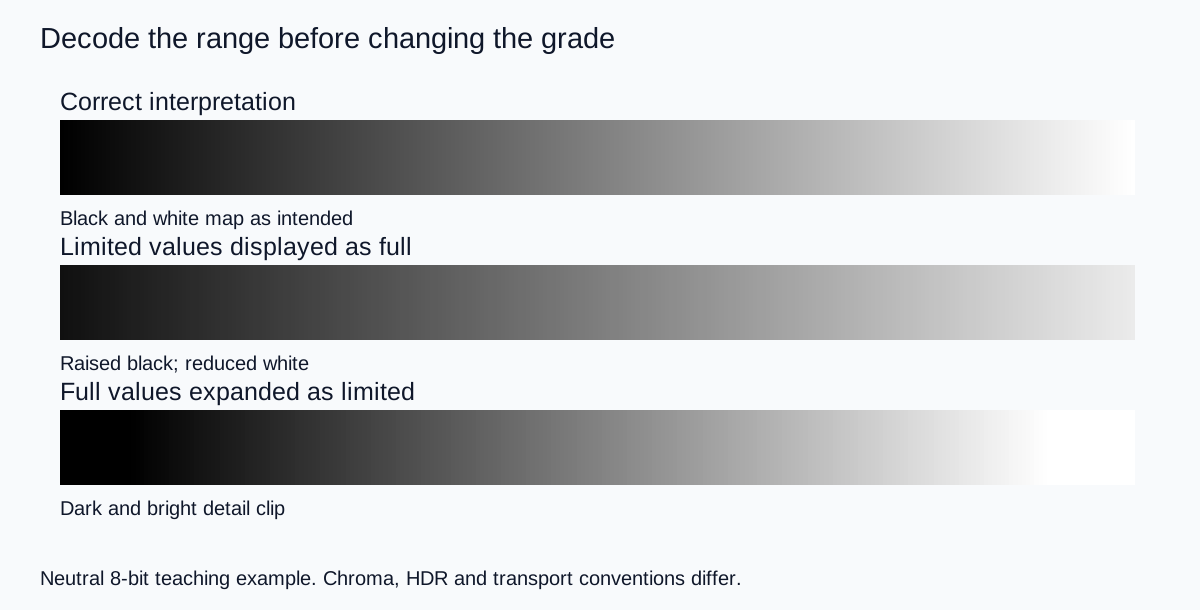
For the unexpanded version, nominal black is displayed at 16/255 rather than zero, and nominal white at 235/255 rather than one. That produces the familiar reduced-contrast appearance. In the opposite error, expanding already-full values can crush shadows and clip highlights.
The drawing makes the mechanism visible, but browser color management and your screen influence its appearance. Use it as a diagnostic explanation. Use a controlled test file and scopes in your actual workflow to establish what the export is doing.
Trace the same file through the same path
Keep the source, editing master, and one exported file. Confirm that every comparison uses that exact export rather than different downloads with similar names. Note the player, device, and any display-mode changes.
Reimport the export into the editing project and compare it with the timeline under the same color-management conditions. If it matches there but differs elsewhere, investigate the decode and display path. That is a useful clue, not complete proof that the file's metadata is correct.
Inspect the file's range indication and your editor's documented interpretation. Metadata can be missing or misleading, and an automatic setting can make an assumption. When testing an override, use a copy and inspect known grayscale detail. Do not apply a global override to every clip simply because it improves one source.
Check another image with different content before declaring victory. A shot dominated by gray walls can look plausible under several wrong mappings, while a textured black coat or bright product label reveals the error quickly.
Use known patches and scopes, not a contrast preference
Choose a representative shot with meaningful dark detail, a midtone, and a bright textured area. Better still, include a known grayscale test pattern in a short export test. Watch how the code values and appearance change through the pipeline.
A waveform display helps you inspect the signal, but its scale and the stage being measured matter. Some scopes show normalized display values after interpretation rather than raw file codes. Confirm what the tool is reporting before equating a number on its axis with a byte value in the source.
My approval notes would identify the exact regions: “black velvet folds remain distinct,” “gray patch agrees with the reference,” and “white label texture survives.” “More cinematic” is not a useful criterion for diagnosing a decoding problem.
Keep the creative color-match process separate. Correct source interpretation comes first; exposure matching and the desired look come afterward. Otherwise an artistic adjustment can conceal a technical mismatch you will encounter again at delivery.
Avoid the common double-correction trap
Imagine a limited-range source that the editor already interprets correctly. Adding another expansion transform because the file contains the word “limited” can crush a picture that was already right. Similarly, forcing full-range tagging without transforming the encoded values can misdescribe the file.
A tag and a pixel-value conversion are different operations. Use the exporter's documented workflow for the required codec and destination. Do not change both until the picture looks pleasing without understanding which stage changed what.
| Symptom | First check | Avoid |
|---|---|---|
| One player looks washed out | Same-file decode and display path | Regrading the master immediately |
| Shadows clip after an override | Whether expansion already occurred | Stacking another range conversion |
| Only one source differs | That file's encoding and interpretation | Changing the whole sequence blindly |
| Known patches disagree | Measured stage and scope scale | Assuming every scale shows raw codes |
How QuestStudio fits the finishing workflow
Use Video Lab to create source shots, then inspect the returned files in the editing workflow. Do not assume that a prompt can set a delivery-range flag or fix a player's interpretation.
If a generated shot actually lacks shadow detail, that is a source-quality decision. A range override cannot recover detail that is absent. Compare a revised source only after you have established that the problem belongs in the image rather than the decode path.
Follow the export review workflow for the final file, including its destination playback. Save the accepted settings with a short comparison note so the next campaign does not repeat the same investigation.
I would approve the version that preserves the intended values through the required delivery path, not whichever setting has the word “full” in its name. Correct agreement is what makes the picture reliable.
Frequently asked questions
Is full range always better than limited range?
No. The correct choice depends on the encoding and delivery workflow. Matching the intended interpretation matters more than the label.
Why does limited-range video sometimes look washed out?
One possible cause is displaying its nominal 16–235 grayscale values without the expected mapping to display black and white. Other color-management problems can look similar.
Can I repair the problem by adding contrast?
That can conceal a mismatch while damaging a correctly interpreted version. Check source interpretation and the playback path before regrading.
Does changing a range tag convert the pixel values?
Not necessarily. Metadata and sample-value conversion are different operations. Use a documented workflow and inspect the exported result.
Do the 16 and 235 values apply to every video signal?
No. They describe the simplified 8-bit nominal luma example used here. Other bit depths, components, and transport conventions require their appropriate values.
Technical references
Continue with a useful next step
 Video
AI Video Dialogue and Lip Sync: Lock the Audio First
Plan AI video dialogue with an approved script, speech track and performance handoff. Use a review log to separate wrong words, timing errors and mouth defects.
 Video
AI Beverage Pour Video: Keep Liquid Levels Consistent
Plan an AI beverage pour video with a clear stream, believable fill changes and stable glass contact. Review the action using five moments and a shot log.
 Video
AI Car Video Wheels: Fix Shape, Contact and Motion
Fix AI car video wheels by separating sampling illusions from changing spokes and sliding tires. Review ground contact, simplify the shot and compare retakes.
Hero: AI-generated editorial illustration. Supporting diagrams and exercises: QuestStudio.