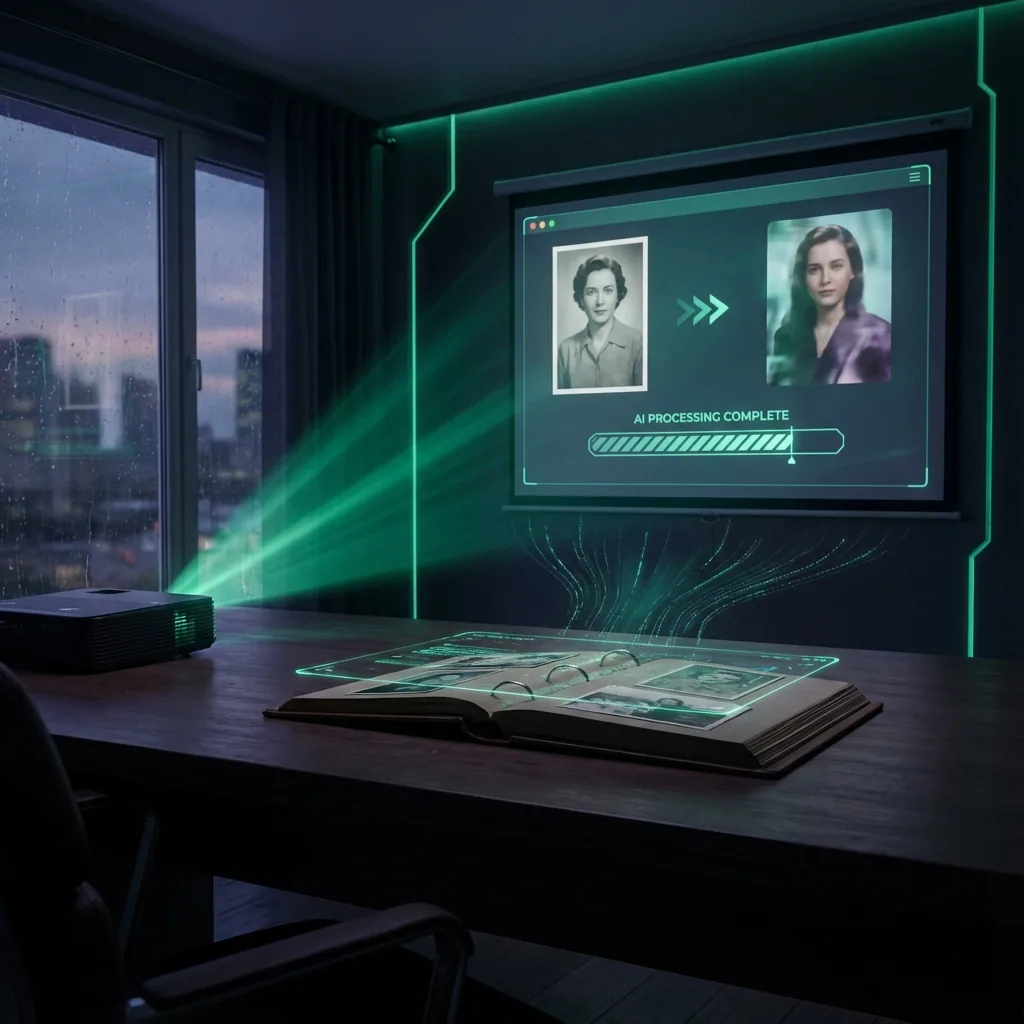

In most modern tools, the image acts as the visual anchor while your prompt mainly tells the model what motion, camera movement, and timing to create.
What makes this tricky is that image-to-video is not just a one-click magic trick. Results improve when you use a strong source image, keep the motion simple, and iterate in short passes instead of trying to force a perfect final clip on the first attempt. That workflow shows up repeatedly in current guides and prompting documentation.
This guide walks through how to use image-to-video AI step by step, what affects quality most, and how to avoid the mistakes that make clips look unstable or fake.
What image-to-video AI actually does
Image-to-video AI takes a still image and generates motion from it. Depending on the tool and model, that motion can include camera movement, subtle facial animation, environmental movement like wind or rain, and object or background motion. Current guides commonly describe the process as using the image to define composition, lighting, subject matter, and style, while the prompt focuses on what should happen over time.
That is why image-to-video often feels easier than text-to-video once you already have a good visual. The image is already solving part of the creative problem for you.
When to use image-to-video instead of text-to-video
Use image-to-video when:
- you already have a strong still image
- you want to preserve a product, character, or portrait
- visual consistency matters
- you want faster iteration from a fixed starting point
Use text-to-video when:
- you are starting from zero
- you want the model to invent the whole scene
- you are exploring ideas before locking the look
A lot of creators end up using both. They explore ideas first, then switch to image-to-video once they have a frame or concept worth refining. That split between creative exploration and visual control is one of the clearest patterns in current image-to-video guidance.
Step 1: Start with the right source image
Your source image matters more than most people think. The image acts as the first frame and gives the model the composition, subject matter, lighting, and style information for the video. Runway's own prompting guide recommends using a high-quality image and warns that artifacts such as blurry hands or faces can get intensified in video generation.
A strong source image usually has:
- one clear subject
- clean lighting
- enough detail in the face or product
- minimal background clutter
- a composition that already looks finished
Lanta's 2026 guide makes the same recommendation, pointing to clear subject separation, good lighting contrast, high resolution, and minimal clutter as strong starting conditions.
If your image is weak, fix that first. It is often smarter to improve the still before animating it. You might create a stronger base in an AI image generator, refine it with image-to-image AI, or sharpen detail using an image upscaler.
Step 2: Think in motion, not in description
This is where many beginners go wrong.
In image-to-video, the image already shows the model what the scene looks like. Your prompt should focus mostly on motion. Runway's guide says effective image-to-video prompts focus almost exclusively on motion instead of re-describing elements already visible in the image. It specifically recommends thinking in terms of subject action, environmental motion, camera motion, motion style and timing, plus direction and speed.
The second prompt works better because it tells the model what should happen, not what is already visible.
Step 3: Keep your first generation simple
Most official and hands-on guides recommend starting simple, then iterating. Runway says you do not need to include every motion component in the prompt and recommends beginning with the most critical motion instructions, then refining as needed.
That is good advice because too much motion usually creates more problems:
- faces drift
- hands deform
- backgrounds flicker
- scene logic breaks
- the clip starts to feel synthetic
For your first pass, keep it simple:
- one clear subject
- one clear motion idea
- one camera move
- a short duration
Examples:
- Slow zoom in, soft wind in hair
- Gentle pan across the product, premium lighting
- Subtle environmental motion, clouds drifting, slight push forward
Step 4: Choose motion style carefully
Current guides typically group image-to-video motion into a few common categories: cinematic camera motion, subtle realism, character or object animation, and background or atmosphere movement. Lanta's guide highlights common moves such as zoom-ins, zoom-outs, pan and tilt effects, parallax-like depth motion, subtle facial movement, hair and clothing motion, and ambient effects like clouds, water, rain, or fog.
For beginners, the safest motion styles are:
- slow push-in
- gentle pull-back
- subtle pan
- light breeze or atmospheric movement
- small facial or clothing motion
The riskier motion styles are:
- fast orbits
- dramatic zooms
- multiple camera moves in one short clip
- heavy subject movement plus heavy camera movement together
A simple move usually looks more realistic than a complex one.
Step 5: Generate several short versions, not one long final
One of the biggest practical patterns in current guides is that quality comes from structured refinement, not one-click generation. Lanta explicitly describes high-quality results as coming from structured input and refinement, while AniFun's tutorial emphasizes reproducible results through model selection, prompt writing, and motion understanding.
That means your best quick workflow is:
Create several short versions of the same idea.
Choose the version with the cleanest subject and most believable motion.
Adjust one variable at a time, such as motion strength, prompt wording, or camera direction.
Only polish after you know the motion is worth keeping.
This is much faster than trying to guess the perfect setup in one shot.
Step 6: Judge the result the right way
Do not just ask, "Does this look cool?"
Ask:
- Does the face stay stable?
- Do the hands hold together?
- Does the product keep its shape?
- Does the background stay logical?
- Is the motion believable?
- Would I actually publish this clip?
The version with the least obvious artifacting is usually the better foundation, even if another version looks flashier at first glance.
Why motion consistency is hard
Image-to-video models have to preserve small details across multiple frames while also generating believable motion. Current guides describe models as estimating depth, understanding object boundaries and movement patterns, and trying to maintain lighting and camera behavior while predicting motion over time.
That is why certain elements break more often:
- faces change subtly
- fingers merge or shift
- jewelry disappears
- clothing folds act strangely
- backgrounds shimmer or rearrange
Runway also notes that existing visual artifacts in the source image can become stronger once the image is transformed into video.
The practical lesson is simple: cleaner input and gentler motion usually produce better output.
Common mistakes beginners make
If the still is blurry, cluttered, or awkwardly cropped, the video will usually inherit those problems.
Your prompt should mainly explain movement, not repeat the whole image description.
More motion often means more instability.
Short clips are easier to keep stable. Lanta's guide notes that many tools generate short clips in the 3 to 10 second range, which fits how these models are commonly used for social and visual storytelling content.
If you switch the prompt, model, duration, and motion style all at once, you will not know what actually improved the result.
A beginner-friendly workflow you can actually follow
Here is the easiest version of the process.
- Pick one good image. Use a clean portrait, product shot, or scene with a clear subject.
- Write a motion-first prompt. Describe movement, camera behavior, and mood in one or two lines.
- Start with subtle motion. Avoid dramatic movement on the first attempt.
- Generate a few short versions. Try small prompt or model changes.
- Choose the cleanest output. Do not chase spectacle over stability.
- Refine only the winner. Simplify or adjust the best version instead of starting over from scratch.
- Polish after motion is locked. Use cleanup and enhancement tools only after you have a clip worth keeping.
How QuestStudio helps
QuestStudio helps because image-to-video quality is usually about testing, comparing, and refining, not just generating once.
A useful workflow inside QuestStudio looks like this:
- create or refine the base still in Image Lab
- use Video Lab for image-to-video generation
- compare outputs across different video models side by side
- save promising prompts in Prompt Lab
- return to the source image if the motion keeps breaking
That matters because different shots often respond better to different models. A portrait, product image, and stylized illustration do not always behave the same way. QuestStudio also makes it easier to keep your prompts organized while moving between still-image creation and video generation in one workflow.
If you are starting from scratch, you may begin in AI image generator. If your goal is testing motion directly, the best place to start is image-to-video AI. If you are comparing broader workflows, AI video generator also fits naturally.
Related guides
FAQ
How do you use image-to-video AI?
What kind of image works best for image-to-video AI?
What should I write in an image-to-video prompt?
Why does my image-to-video result look weird?
Is image-to-video easier than text-to-video?
How long should an image-to-video clip be?
Should I fix the image before animating it?
Conclusion
The easiest way to use image-to-video AI well is to stop thinking of it as one-click magic and start treating it like a simple creative workflow. Use a strong source image. Write a motion-first prompt. Keep the first pass subtle. Generate a few short versions. Pick the cleanest one, then iterate.
If you want to test that workflow across multiple models, compare results in QuestStudio on the Image to Video AI page.